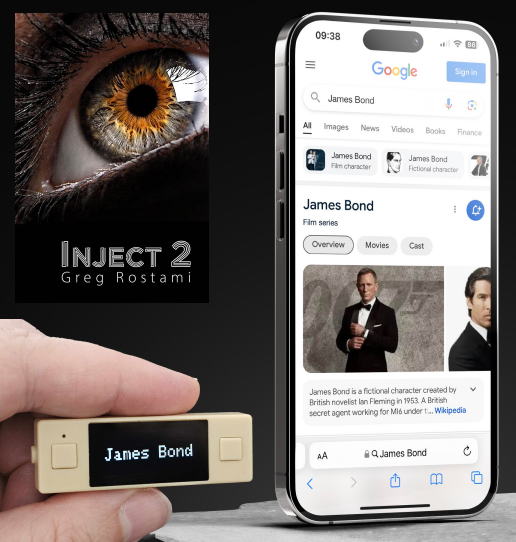
Send data to Inject
The routine
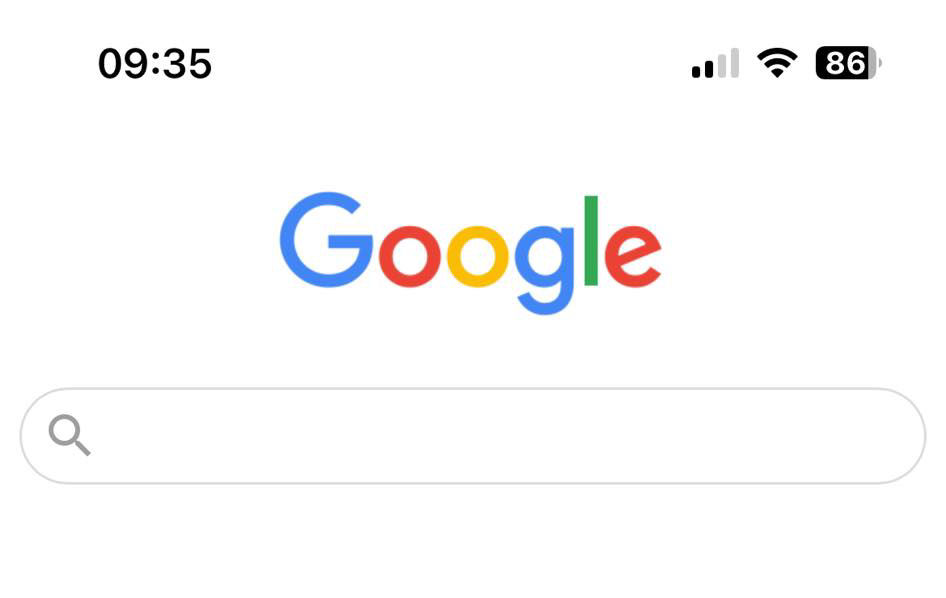
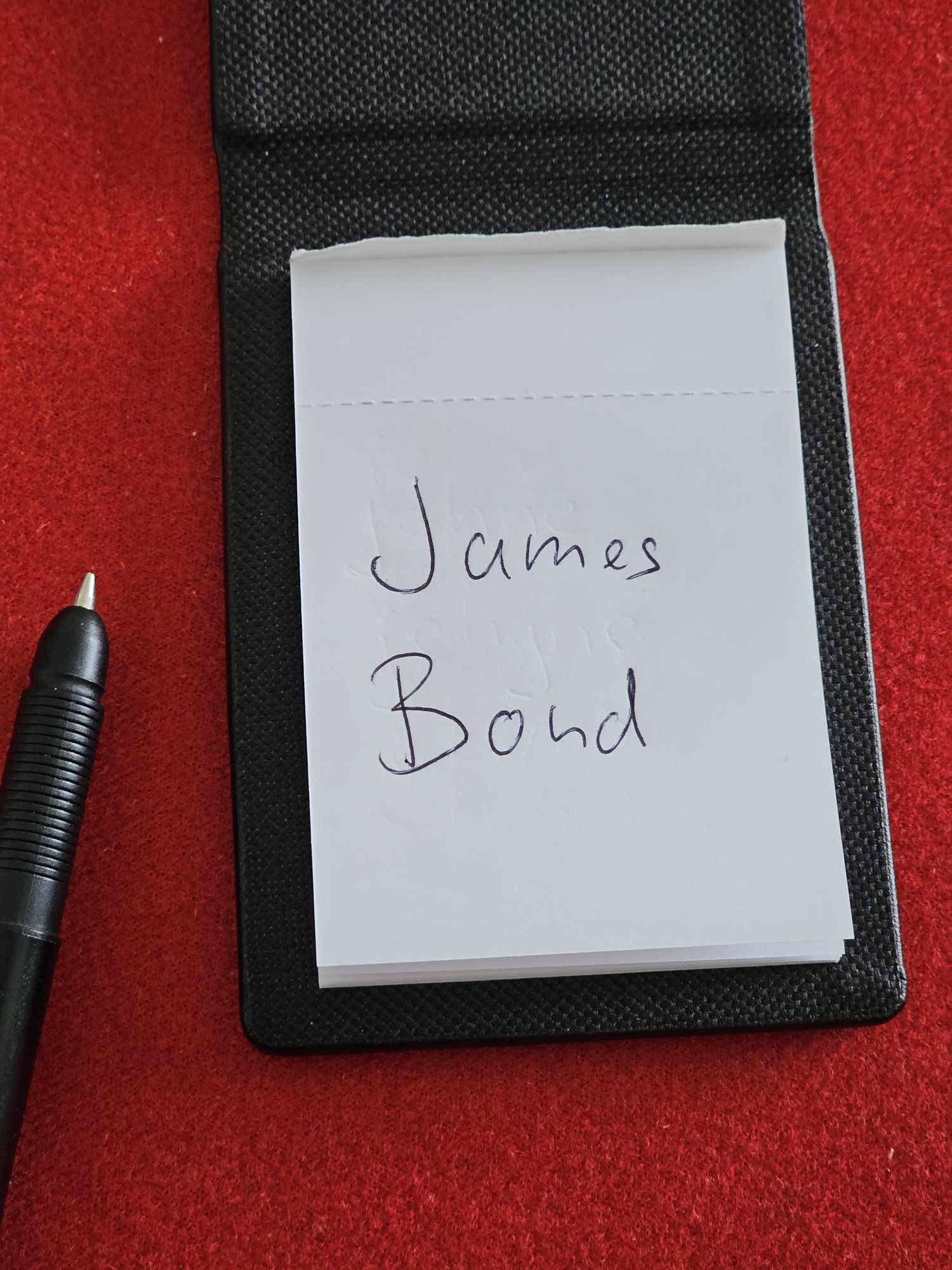
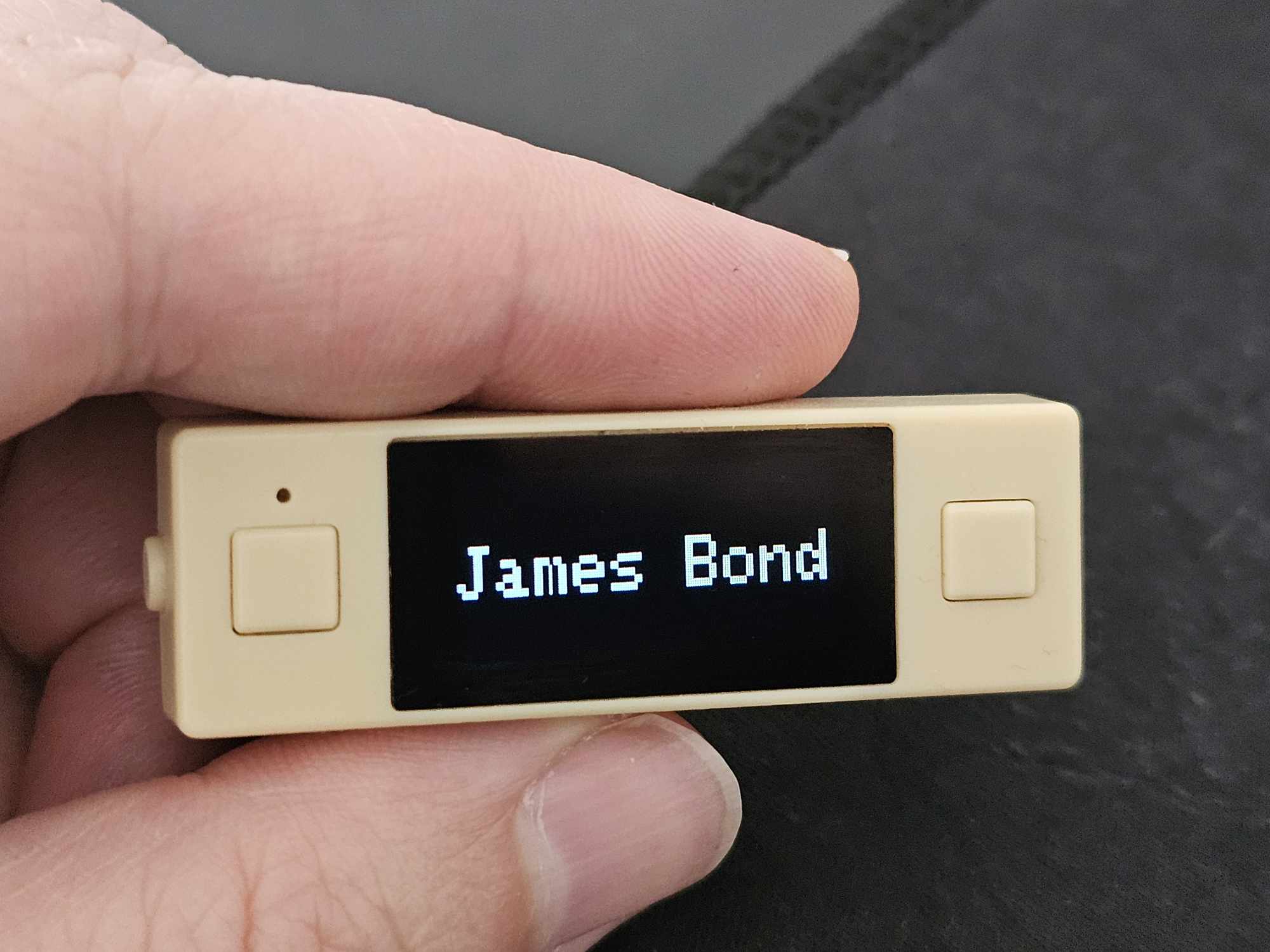
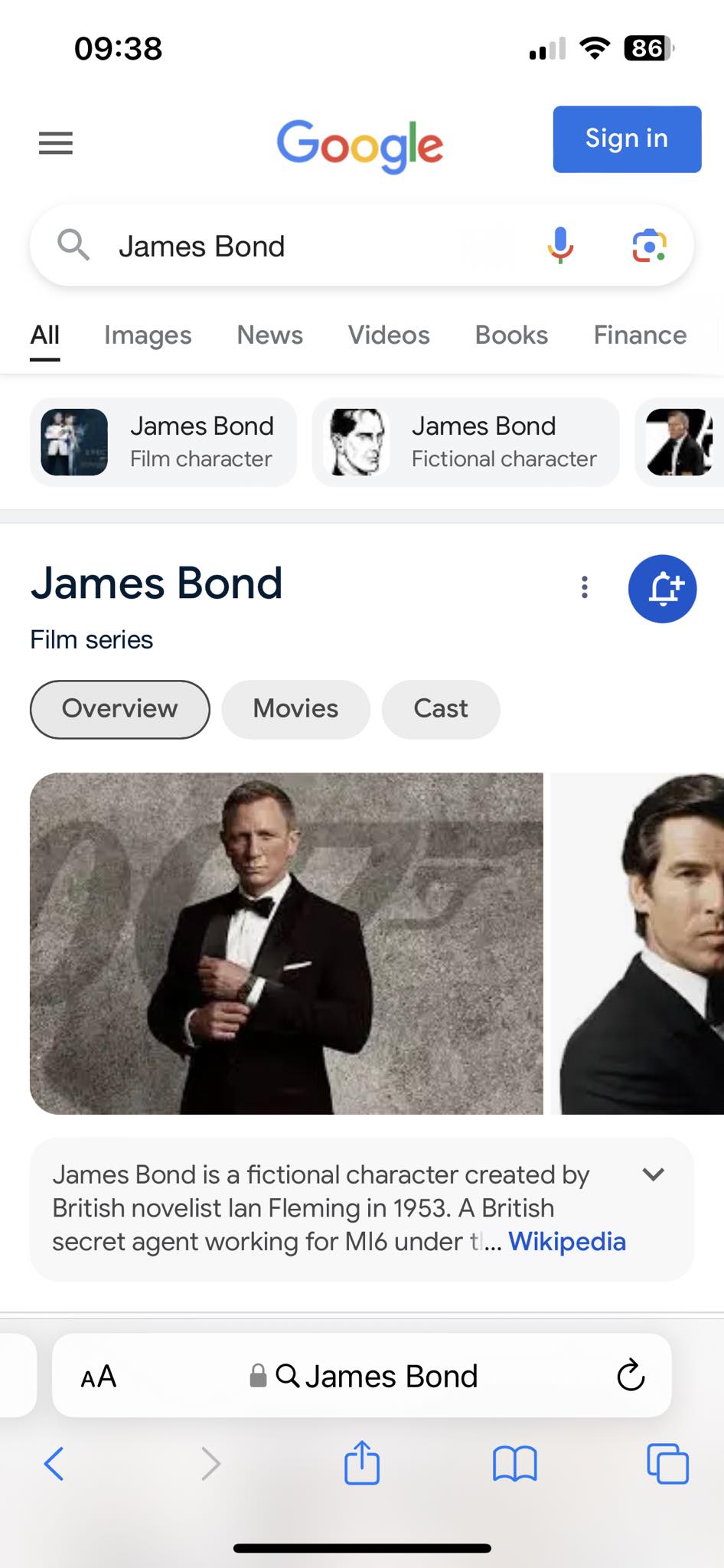
You open a (fake) Google search page on the spectator's phone, and pretend to search for something (place, object, country, people etc.), then place the phone face down on a table. You give a spectator an impression board, and they write something on it. When they are ready, after a few seconds they can turn over their phone, and they will freak out that you have searched for the same thing they wrote!!!
How it works
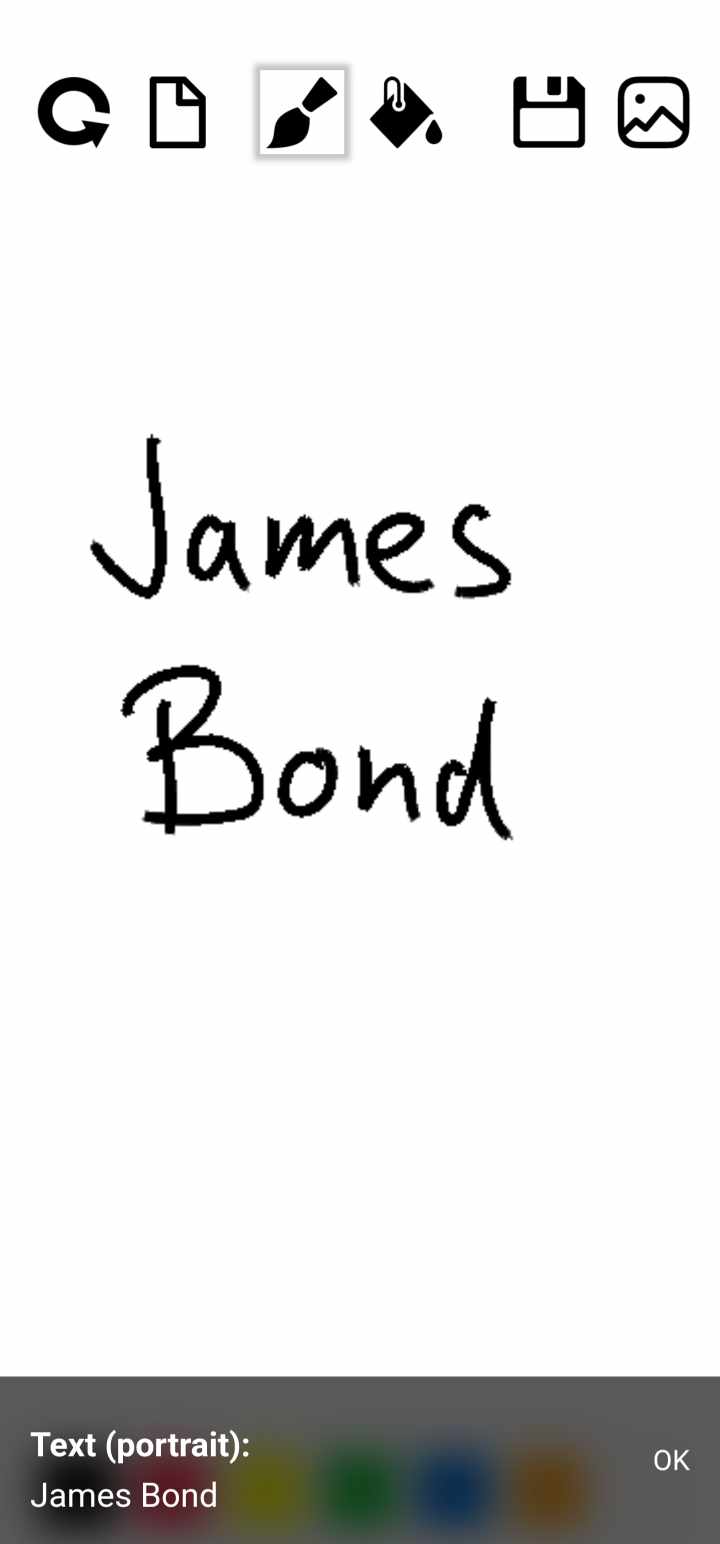
Basically you have to do a text recognition from an impression board (or the in-app Doodle screen, or using the WEB-doodle on another spectator's phone), and the app will send the recognized text to your Inject account's fake Google search page (use https://qq1.us/username ). Alternatively you can use other text input methods, like manual text entry in the MysterSmith app, reading an NFC card, polling a WEB API source or using the WEB-thumper from any browser, and send that text to Inject.
If you go with text recognition, please read all info on this page: Text recognition
API & A.I. Access add-on needed
To be able to send data from the MysterSmith app to 3rd party apps and APIs, you have to buy the "API & A.I. Access" add-on. Alternatively you can subscribe to MysterSmith, and get access to all the available add-ons.
More information: "API & A.I. Access" add-on
Inject account setup
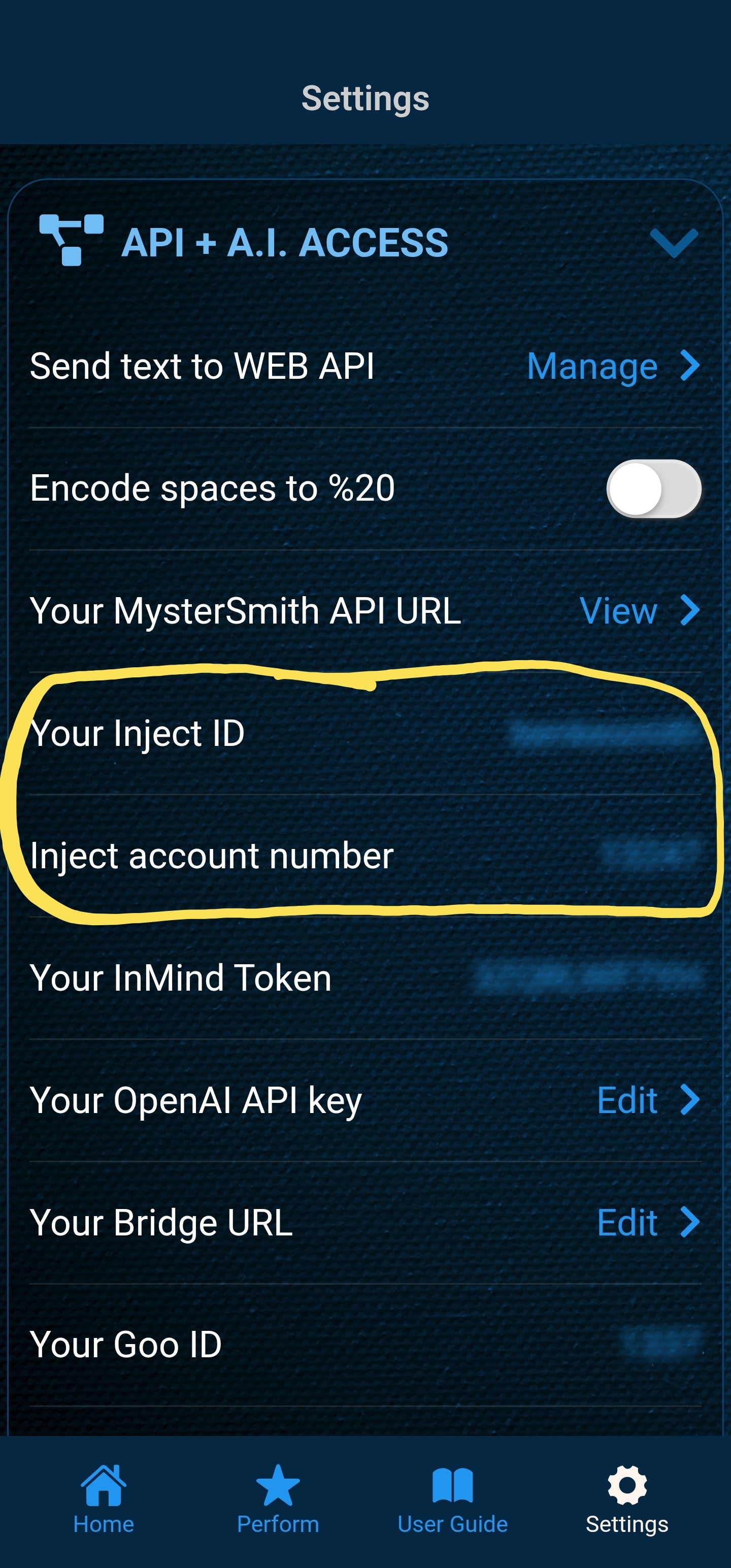
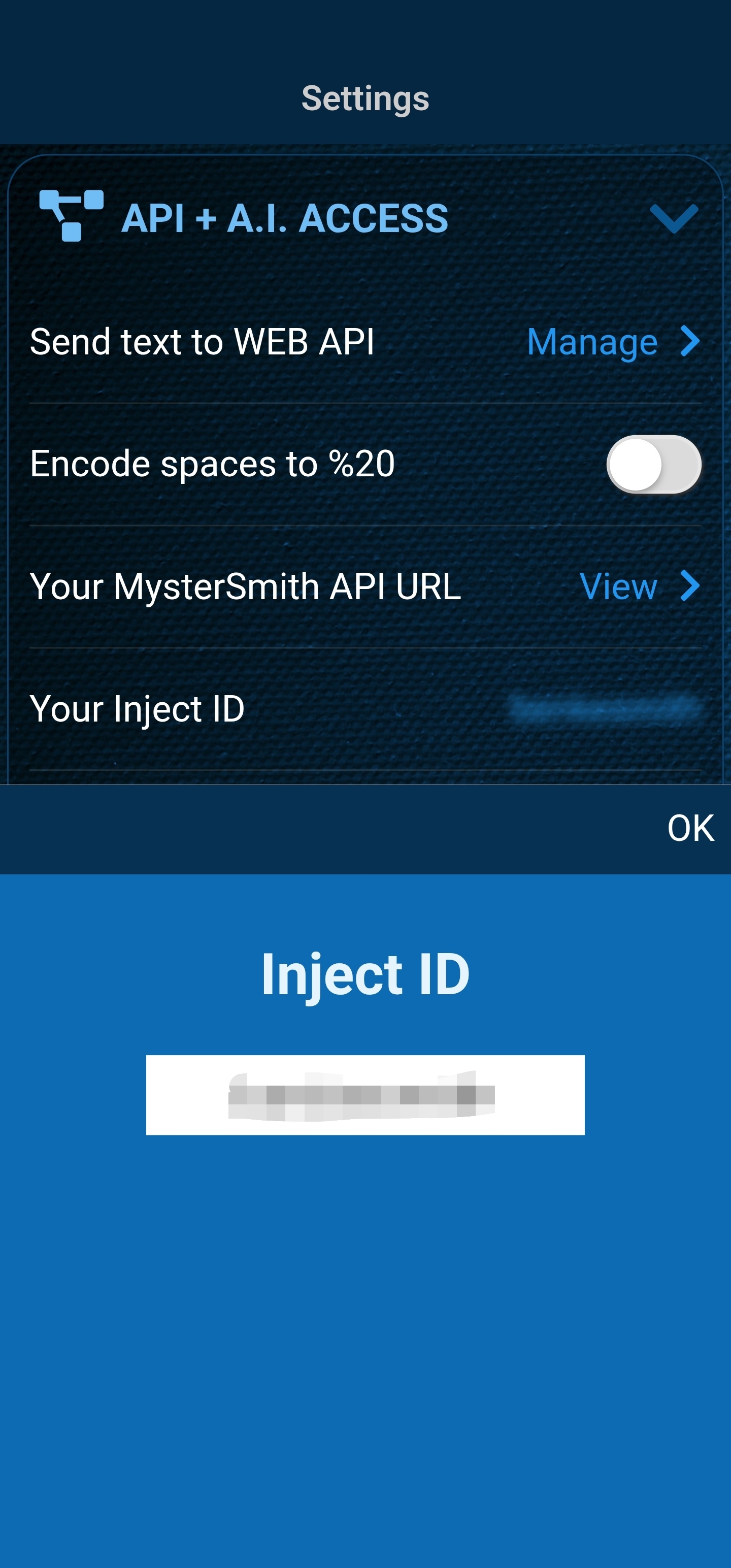
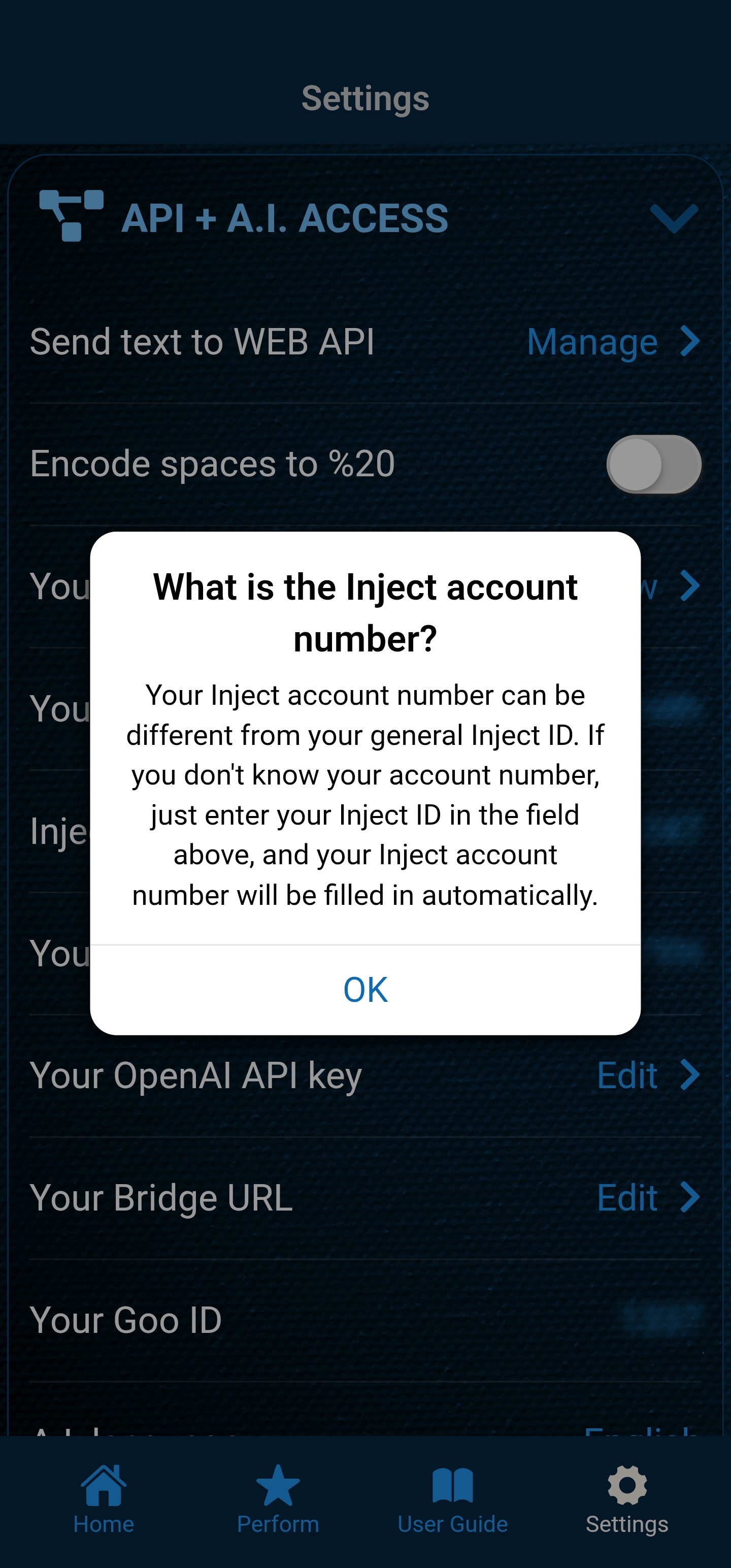
First of all you have to buy Inject 2.0 by Greg Rostami, and set up a username. Then in the MysterSmith app go to Settings, and scroll down to the API + A.I. ACCESS section. There you can enter your Inject ID / username. The Inject account number should be automatically filled in (in some cases it's not the same as the Inject ID). In case the account number is not properly set automatically, you can manually enter it (ask for help from someone who knows how to get the account number).
Send text to Inject (manually)
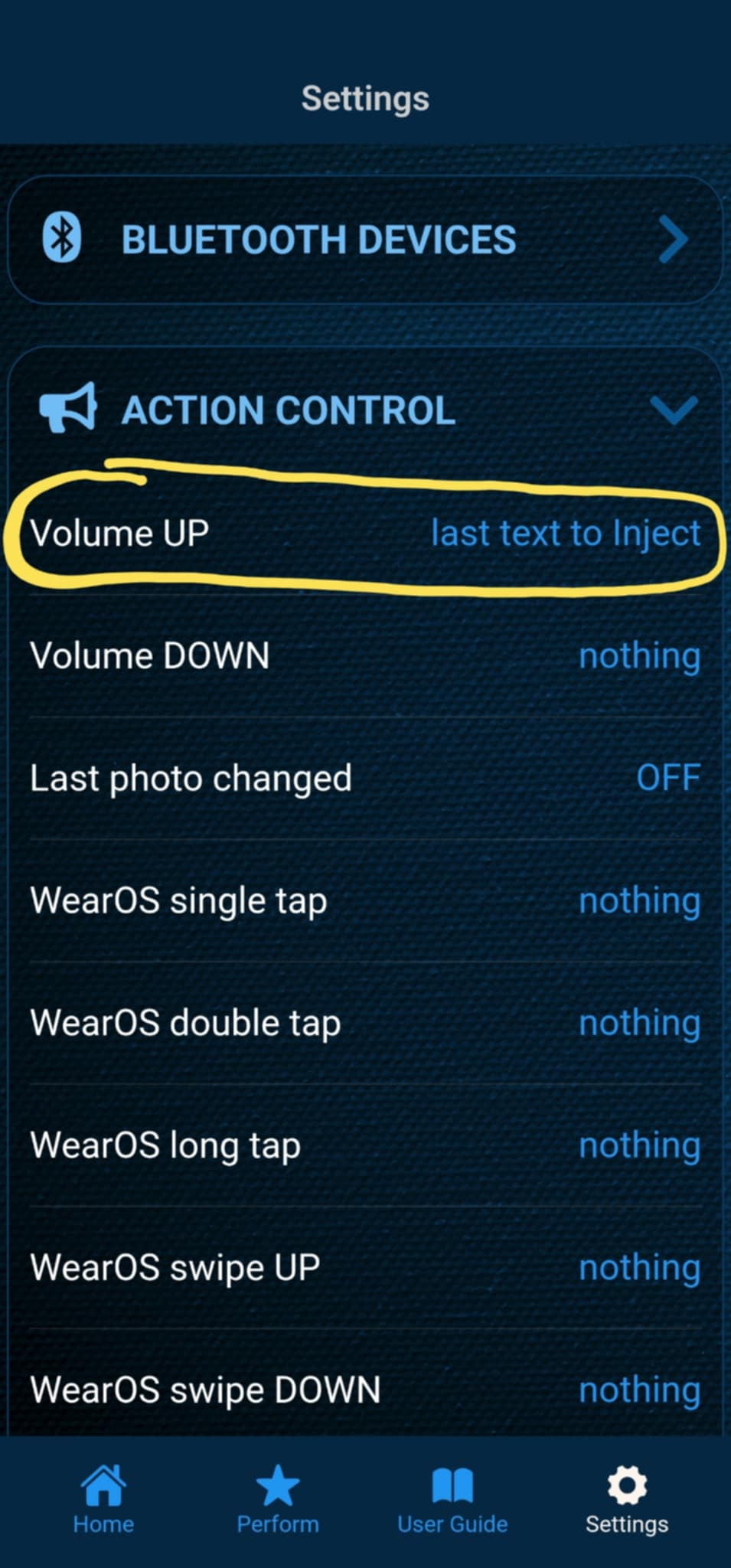
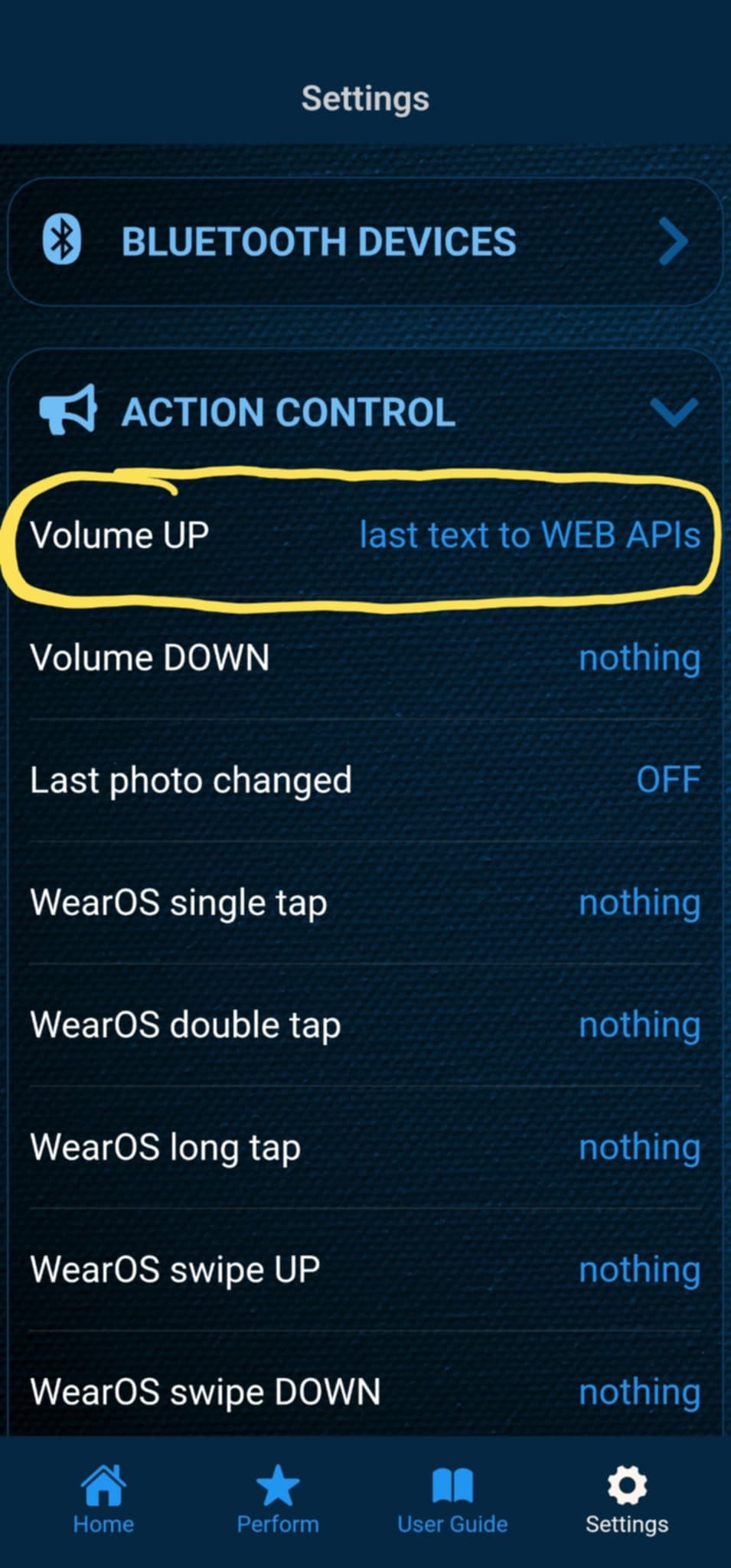
The easiest and best way to send data to Inject is to manually trigger the " last text to Inject " action. You can select a trigger in the ACTION CONTROL section of the Settings (or at any other section where you can set actions). A trigger can be any of the following actions:
- volume button press
- PeekSmith 3 button press
- PeekSmith 3 magnet sensor
- PeekSmith 3 tap
- Atom remote button short/long press
- Apple watch tap/swipe
- WearOS watch tap/swipe *...and many-many more (please explore the settings)
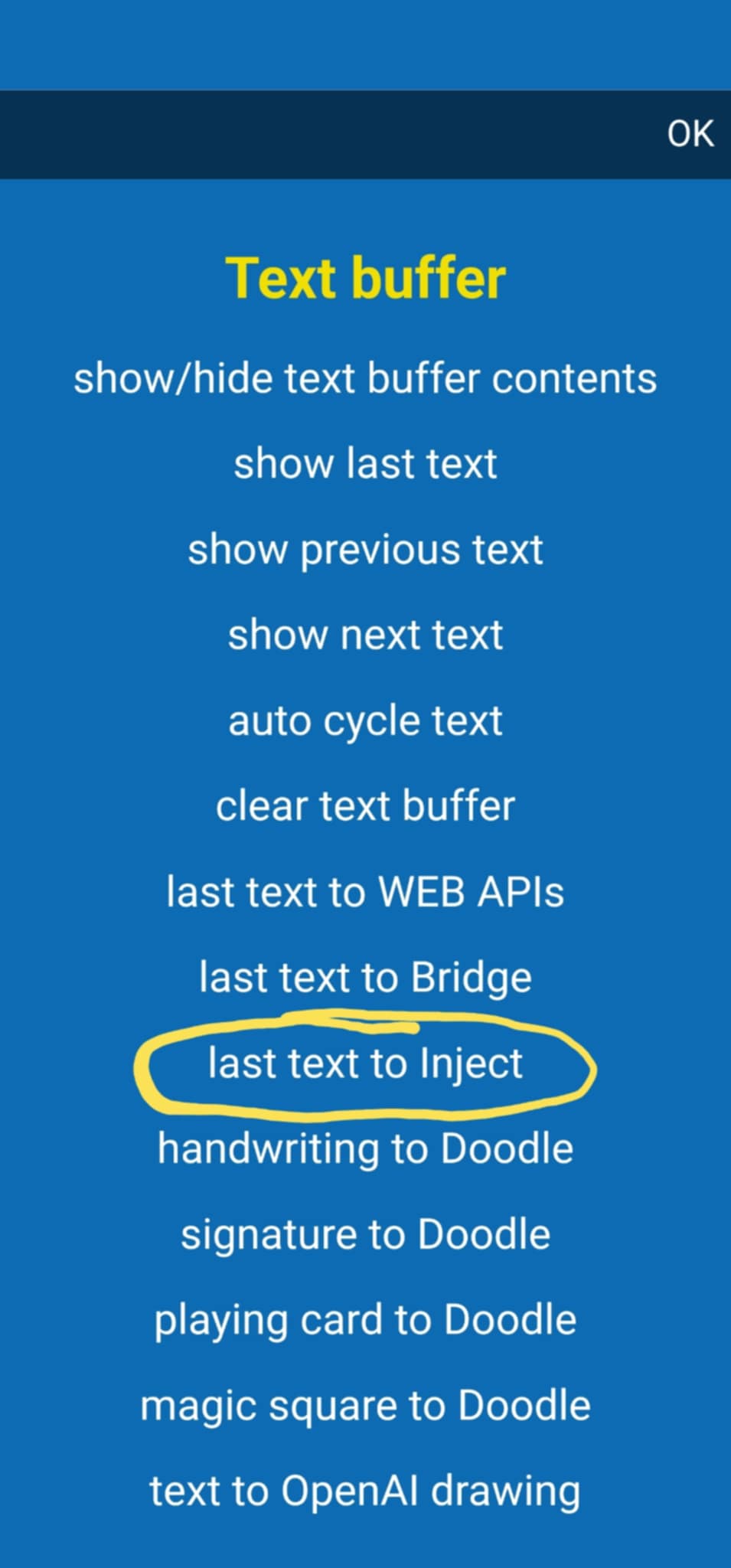
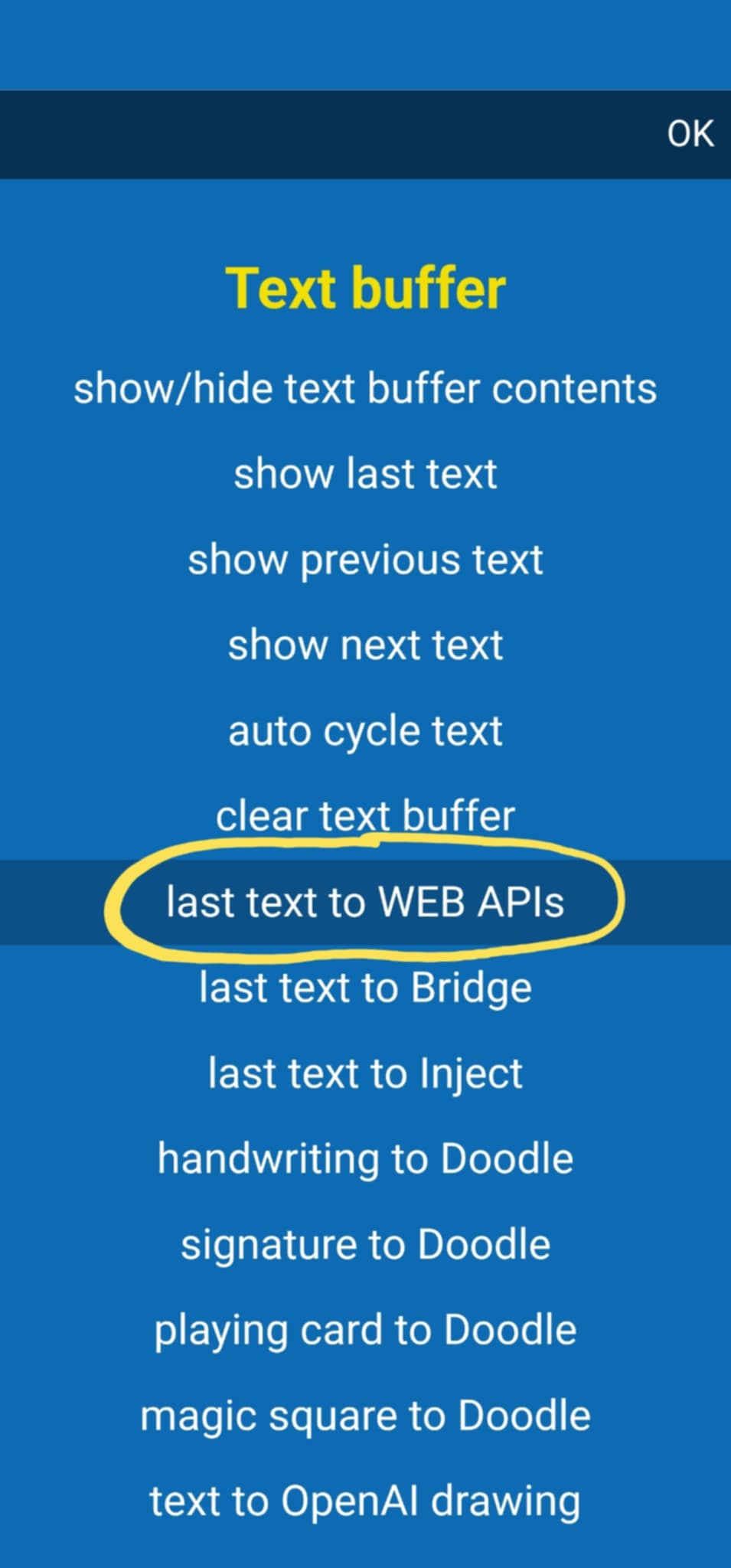
As soon as you trigger the "last text to Inject" action (in the "Text buffer" section of the actions list), the fake Google page will receive the text and perform the real Google search.
Second method: send to active APIs (manually)
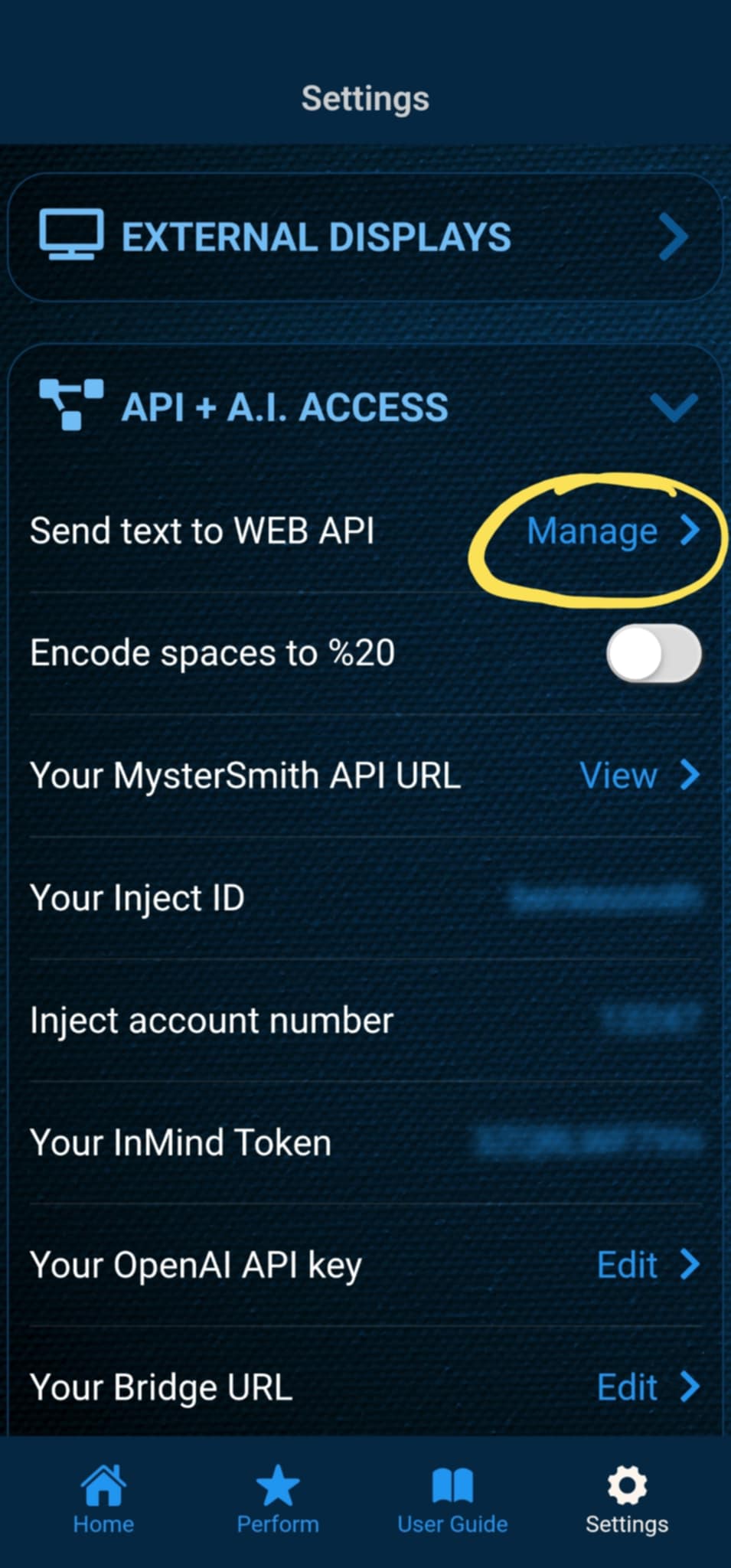
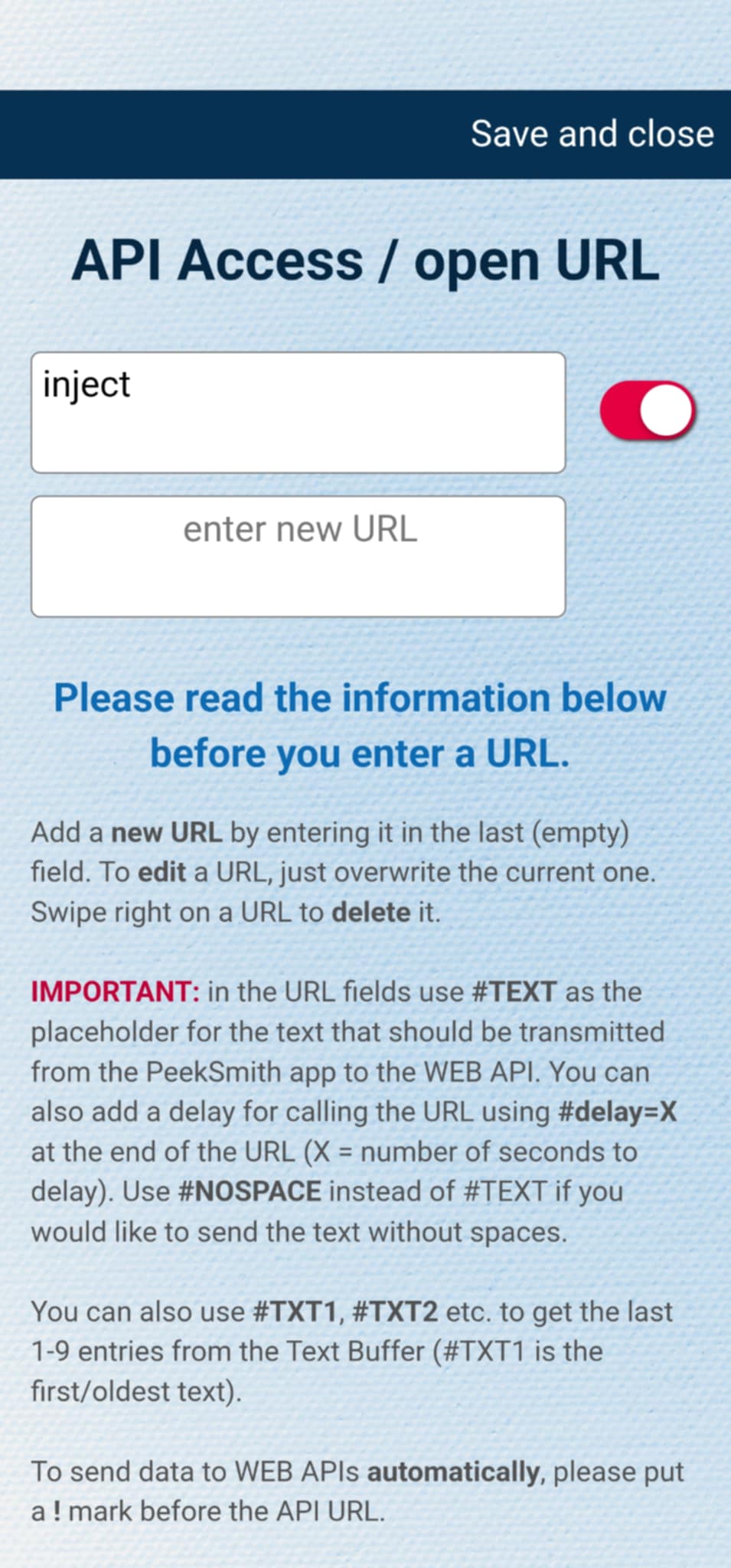
With this method you can send the text not only to Inject, but to any other active WEB API URLs as well. To add Inject as an API URL, you have to go to API + A.I. ACCESS ACCESS and select "Send text to WEB API" - " Manage ". In a new empty field enter " inject " (see the screenshot below), and make sure the toggle is activated. You can add other URLs as well, and activate them with the toggle.
When you trigger the action "last text to WEB APIs" then all active URLs will receive the text. I recommend using this method only if you need to send the text to other targets as well, and not only to Inject.
Third method: send to active APIs (automatically)
This method is almost the same as the previous one, except this time you add a ! mark before "inject" when you enter the API URL. If you enter " !inject " then the recognized text (or the data from other sources) will be sent to Inject automatically, without using any action trigger.
This method can be dangerous, because you might accidentally send data to Inject. I recommend using the previous methods, unless you need to send data to Inject automatically, without any interaction (action trigger). Of course all other active API URLs that start with a ! mark will also receive the data.