PeekBoard firmware update
This guide is for owners of the Iarvel PeekBoard or the Spirit Echo. Both are the same hardware – one is a whiteboard, the other a black chalkboard – so the update process is identical for both models.
To keep your board working with MysterSmith, two updates are required:
- updating the board firmware (using the official Iarvel app)
- updating the SD card version (the
BOOT.binfile)
Latest versions that work with MysterSmith
- Firmware (FW): v47
- SD version (BOOT.bin): v17
After finishing both updates, connect the board and check that these version numbers are shown.
For an additional reference you can also read the official Spirit Echo firmware update page: help.electricks.info/docs/spirit/echo/firmware-update
1. Updating the board firmware
The board firmware is updated using the official Iarvel app.
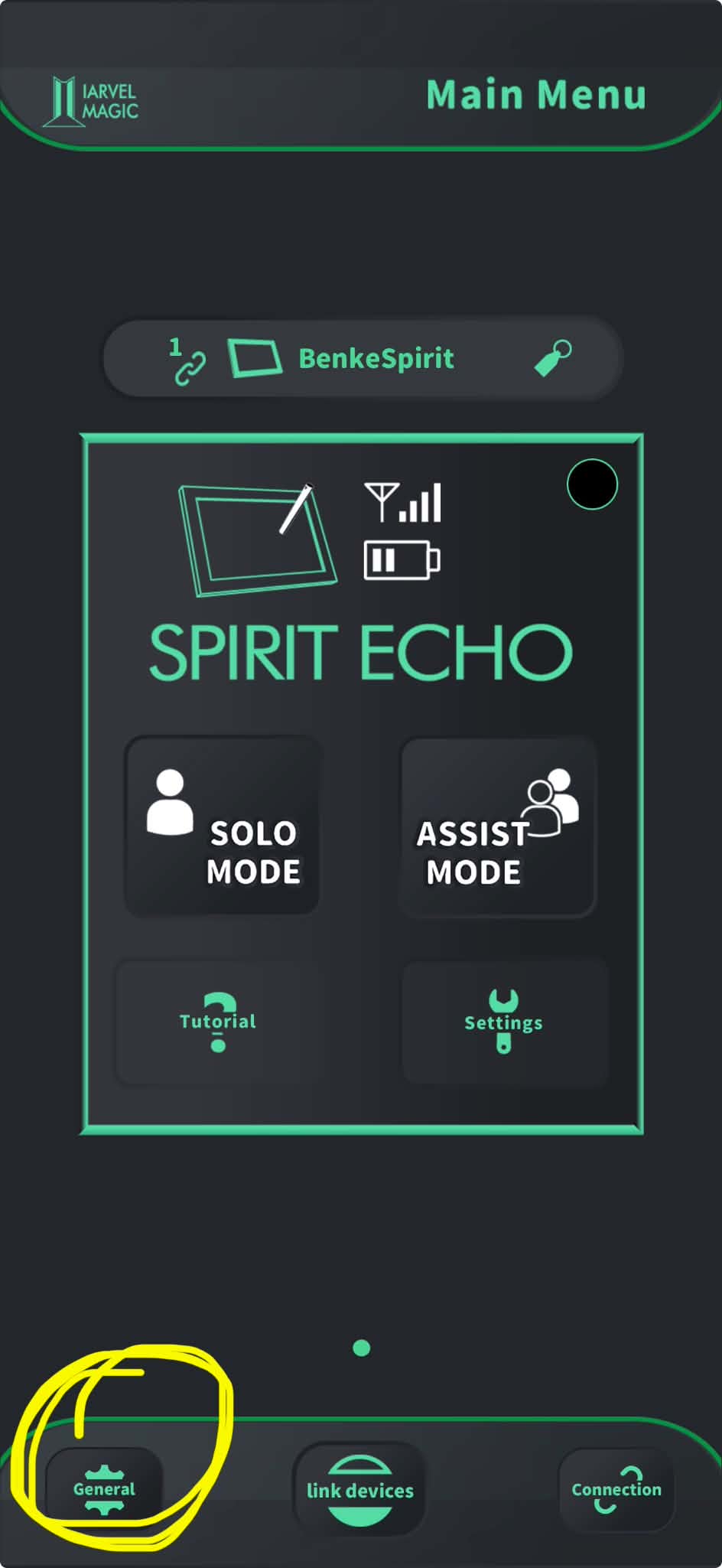
- connect the board in the Iarvel app
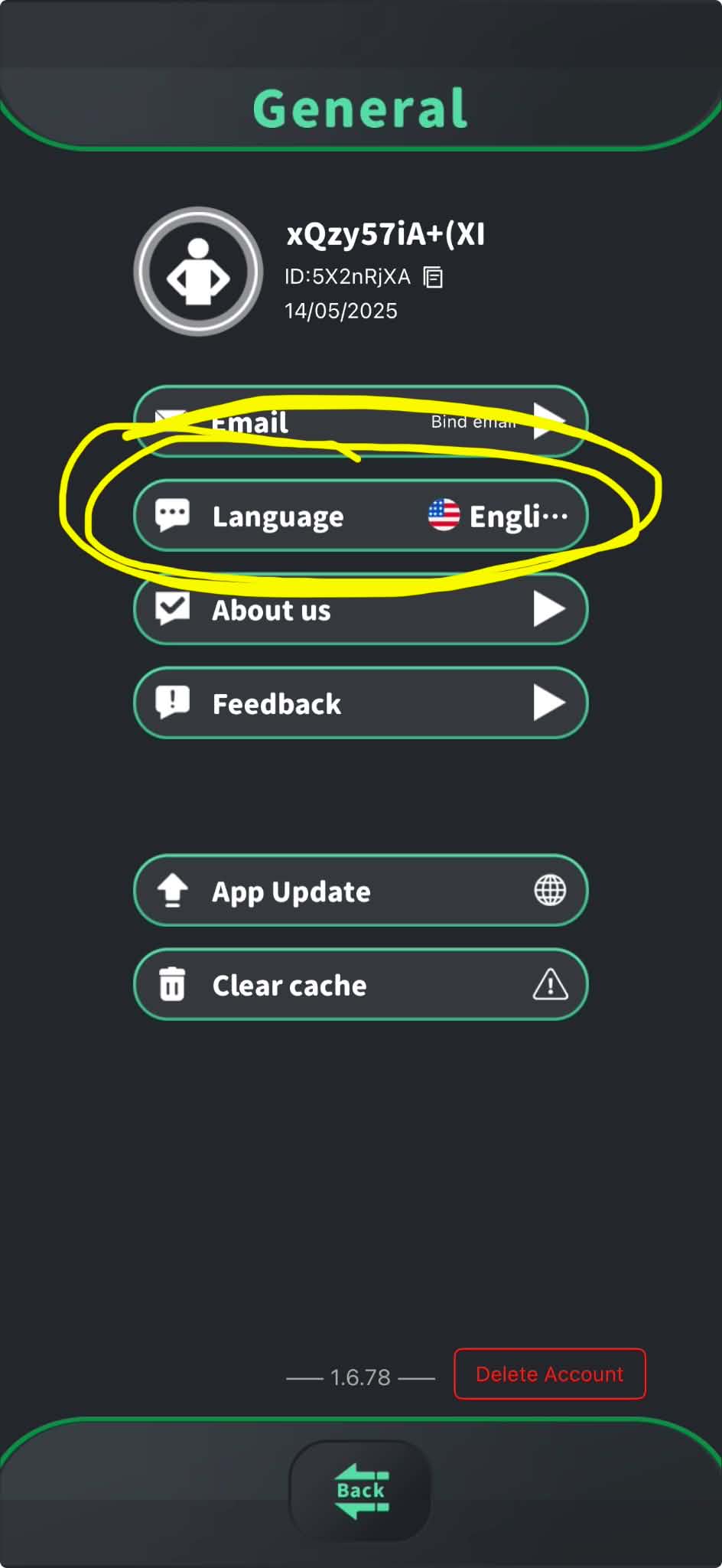
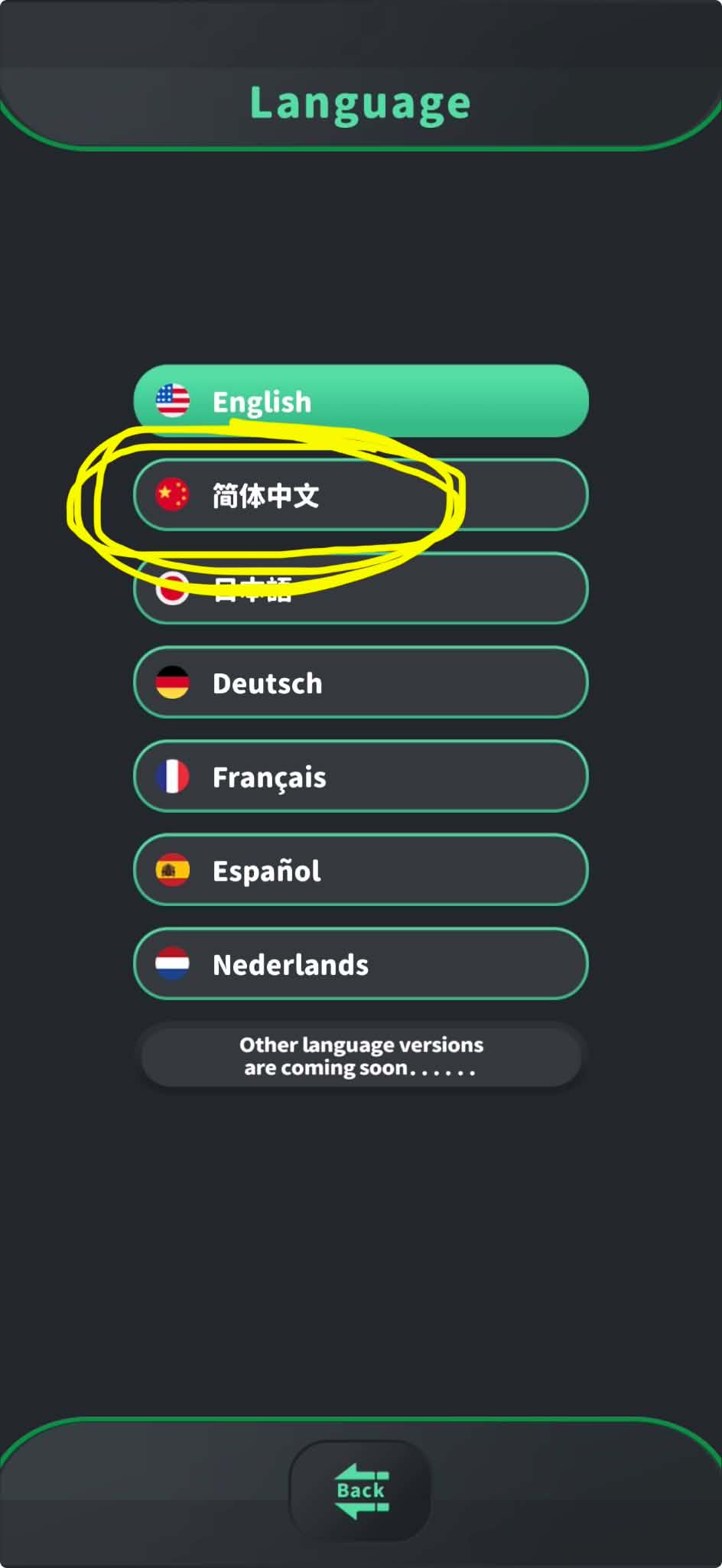
- switch the app language to Chinese
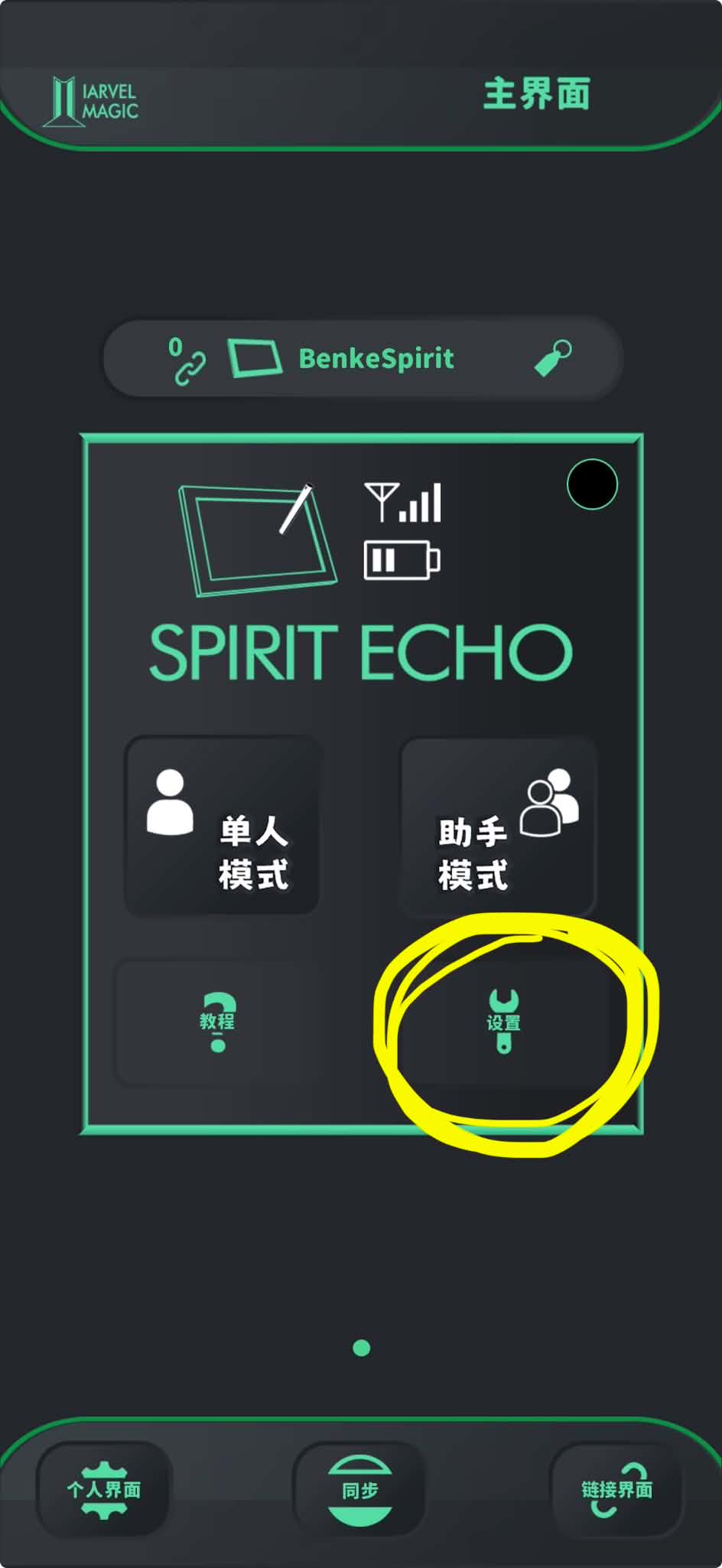
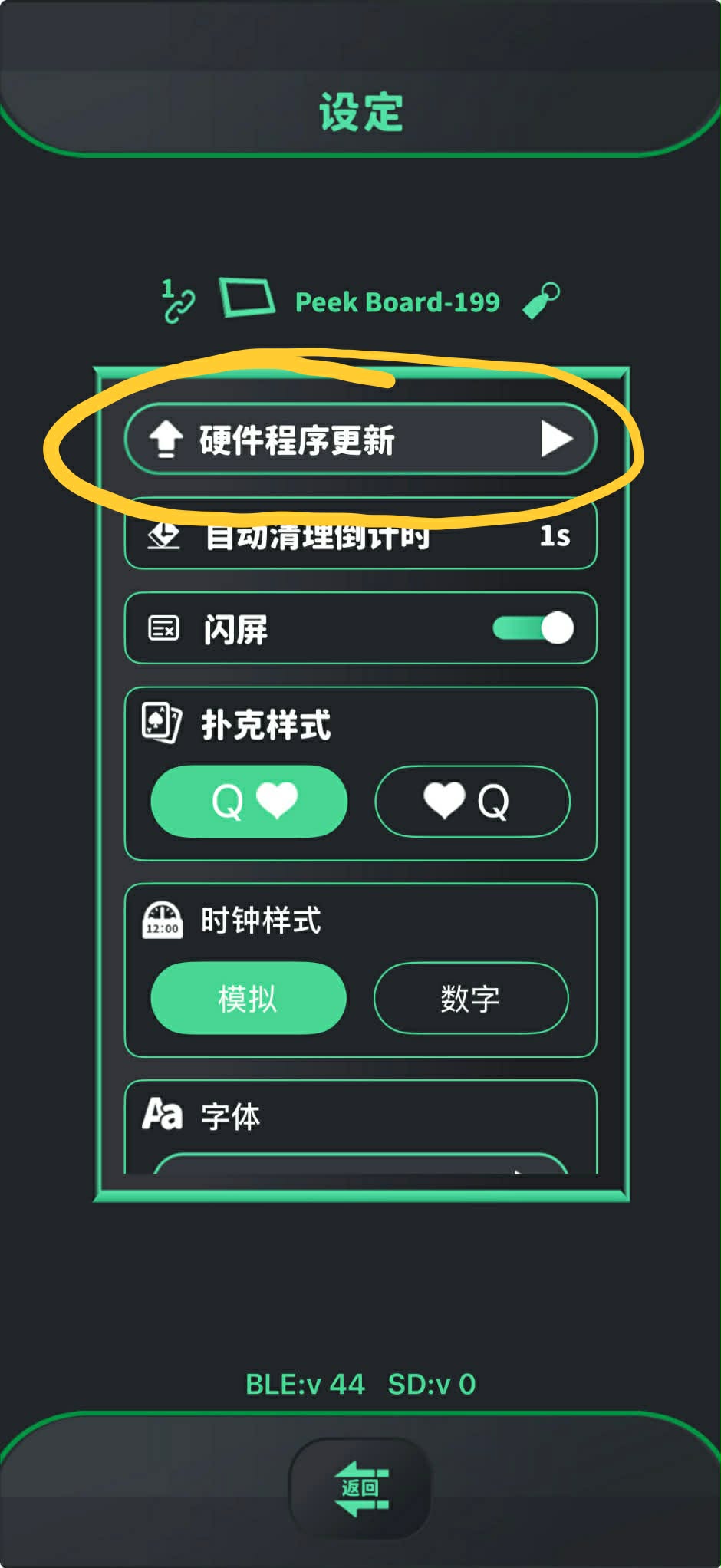
- open the Settings page of the board
- select Firmware Update (the option at the very top of the settings)
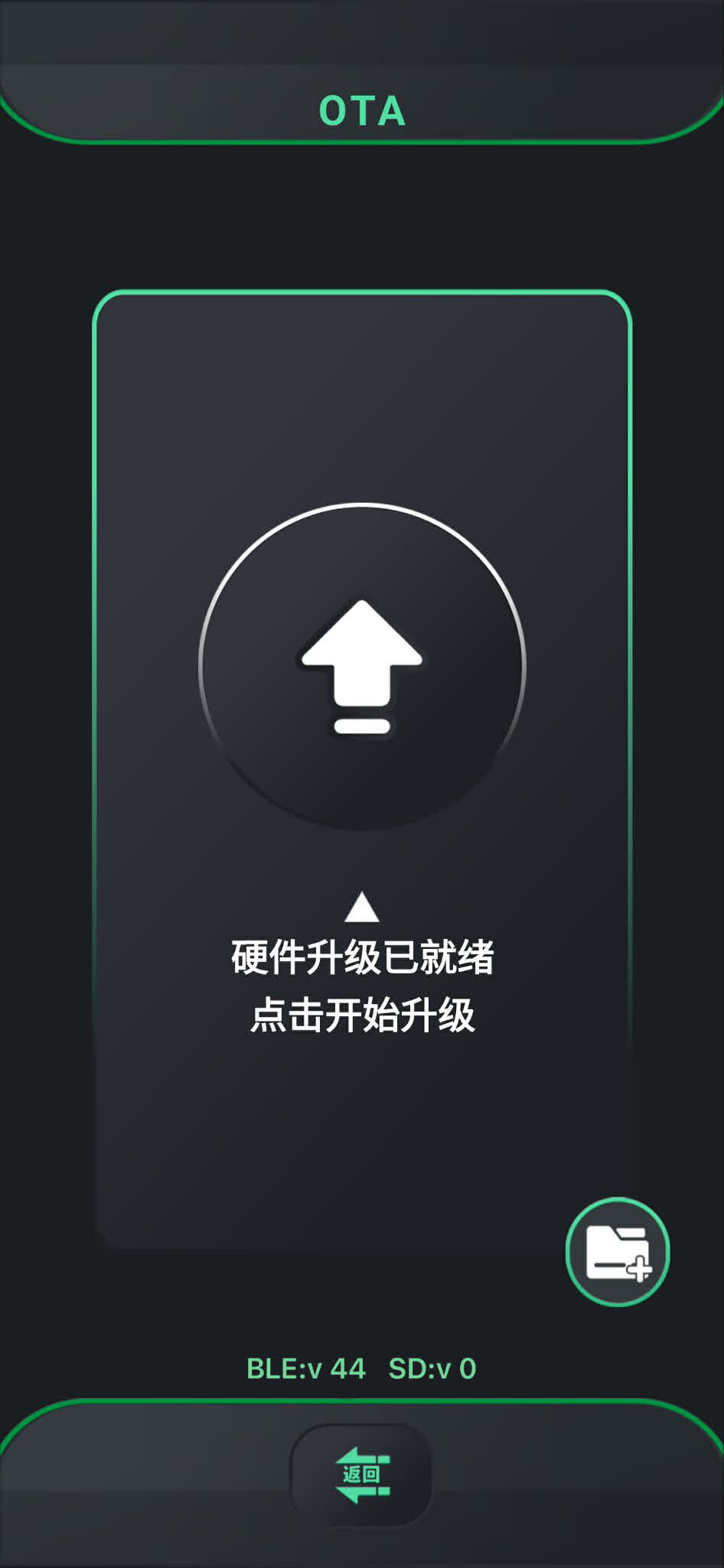
- tap the large upload icon
- when the update is finished, go back to language settings and switch back to English
- disconnect the board
2. Updating the SD card version
First, download the latest BOOT.bin file (SD version v17):
Then follow these steps:
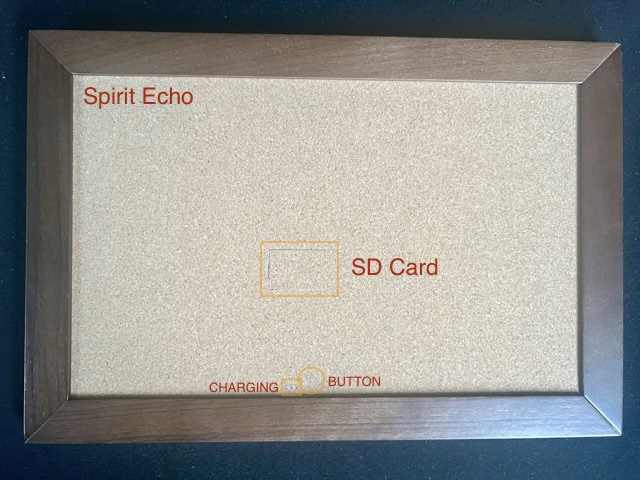
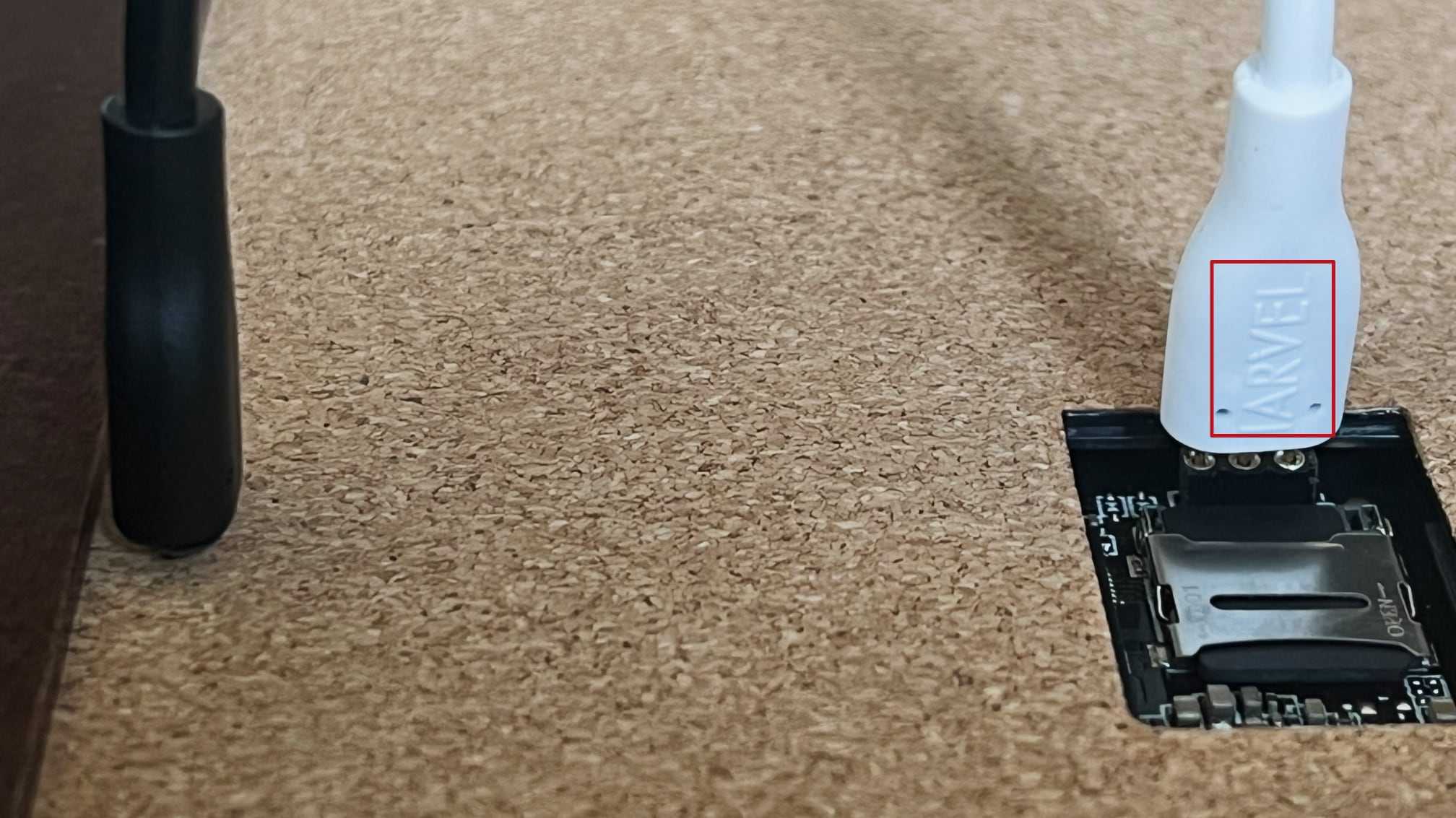
- connect both cables on the back of the board: the black cable is the power, the white cable is the data cable for the SD card
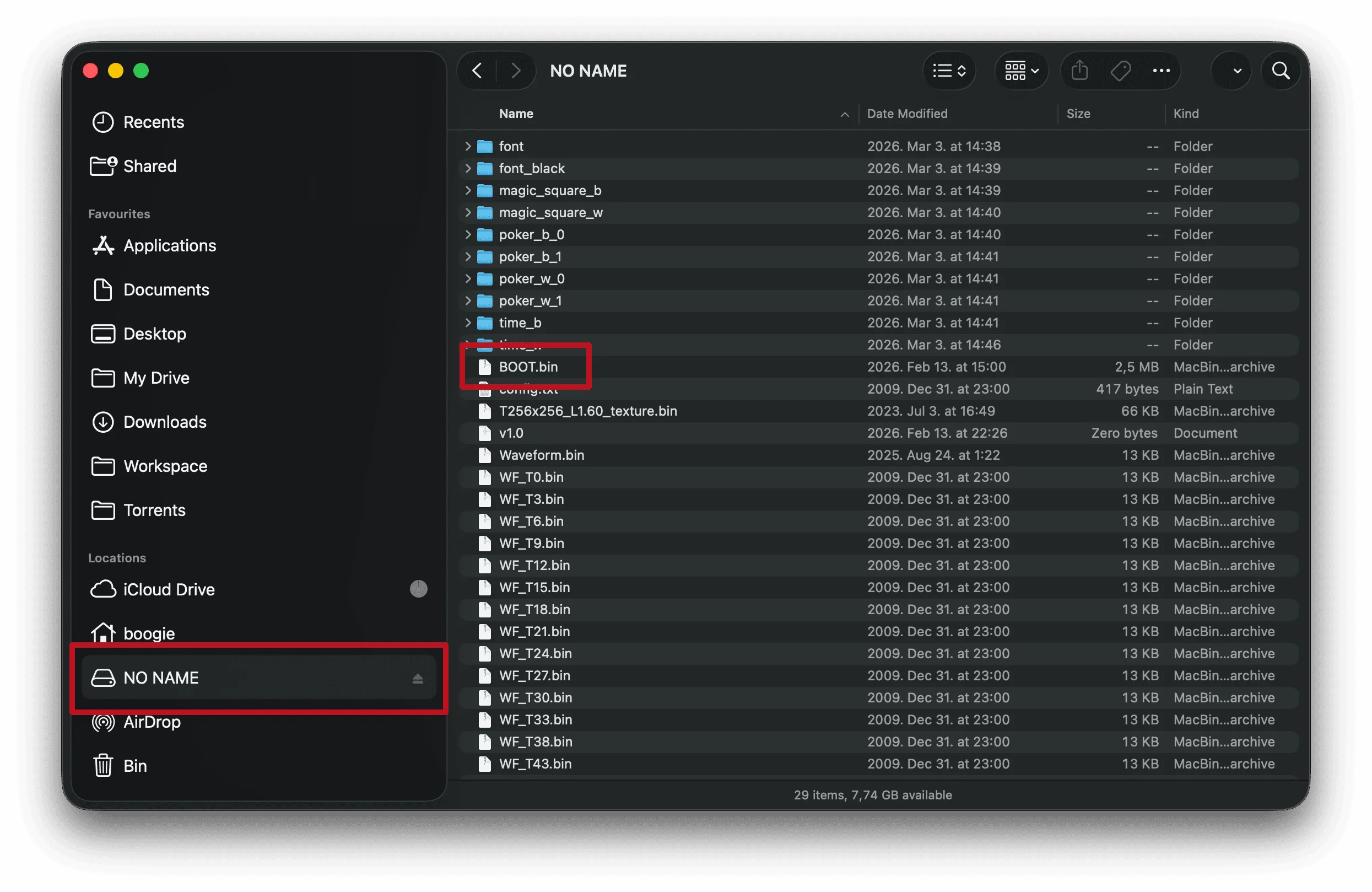
- copy the
BOOT.binfile to the root of the SD card, overwriting the previousBOOT.binfile - disconnect both cables, and press the button on the back of the board for 10 seconds to restart the board
Check the white cable orientation!
The embossed IARVEL label on the head of the white (data) cable must face towards the SD card. Plugging it in the wrong way can prevent the SD card from being read.
Finishing up
After both updates are done, reconnect the board in either the Iarvel or the MysterSmith app, and check the version numbers – they should read FW v47 and SD v17.