The WEB-screen
The WEB-screen shows the texts sent from MysterSmith on a web page, in any browser: on a second phone, a tablet or a laptop. It is free (no add-on needed, since v2.3.94). It was rebuilt in November 2026: it is a modern, responsive page now, and it can be installed as a fullscreen app.
It works with my other apps too (PeekSmith, TimeSmith, CubeSmith, DiceSmith ...): pick the app when you log in.
Getting started
- In MysterSmith switch on Enable WEBscreen (Settings → Output / Screens → OUTPUT OPTIONS).
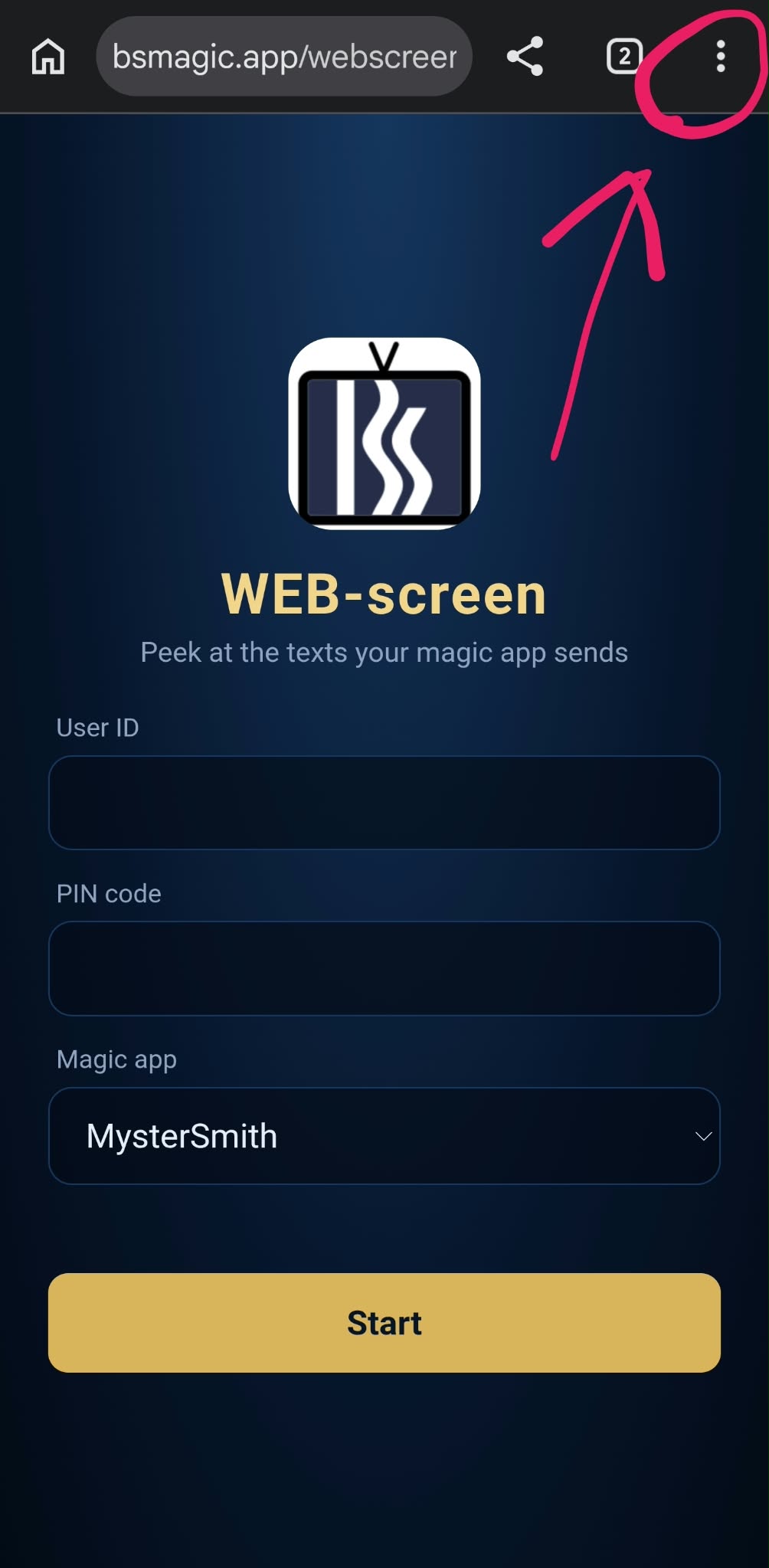
- On the other device open bsmagic.app/webscreen.
- Log in with your User ID and PIN code (the same as in the app), and pick the Magic app.
From now on every new text of the app appears on the WEB-screen. The browser remembers the login, so next time it starts at once.
Settings
Triple-tap anywhere on the screen, or tap the faint gear in the bottom left corner, to open the settings:
- Display — Fullscreen (black screen, big text) or Small peek screen (a small 300×150 frame at the top, in the middle or at the bottom of the screen; the frame line can be switched off).
- Text size, Text color and Opacity. You can also swipe up / down on the screen to make the text bigger / smaller. A long text is made smaller automatically, so that it fits.
- Playing cards — a card (like
4H,4♥,queen of spadesorKH AS 7C) is shown as a card face, or as a symbol (4♥, with a red heart). - Touch to peek — the text is shown only while you touch the screen (the rest of the time the screen is all black).
- Vertical phone only — the text is shown only while the phone is held upright (on iPhone, the page asks for the motion sensor permission when you switch it on).
- Hide peek after — new data is shown only for this many seconds, then the screen goes black until the next text (0 = Off).
- Keep screen awake — the screen does not turn off while the WEB-screen is open.
- Show settings gear — the faint gear in the corner (on by default; triple-tap always works).
- Show a sample — try your settings with a sample text and card, without sending anything from the app.
- Log out — to log in with another user or another app.
The settings are stored in the browser of that device.
Fullscreen
Installed on the home screen (see below), the WEB-screen starts as a fullscreen app. In a normal browser tab on Android, it switches to fullscreen at your first tap. On an iPhone the status bar (time, battery) can not be hidden by a web page — hold the phone in landscape if you need a completely black screen (iOS hides the status bar then).
Fullscreen app shortcut on iOS (Safari)
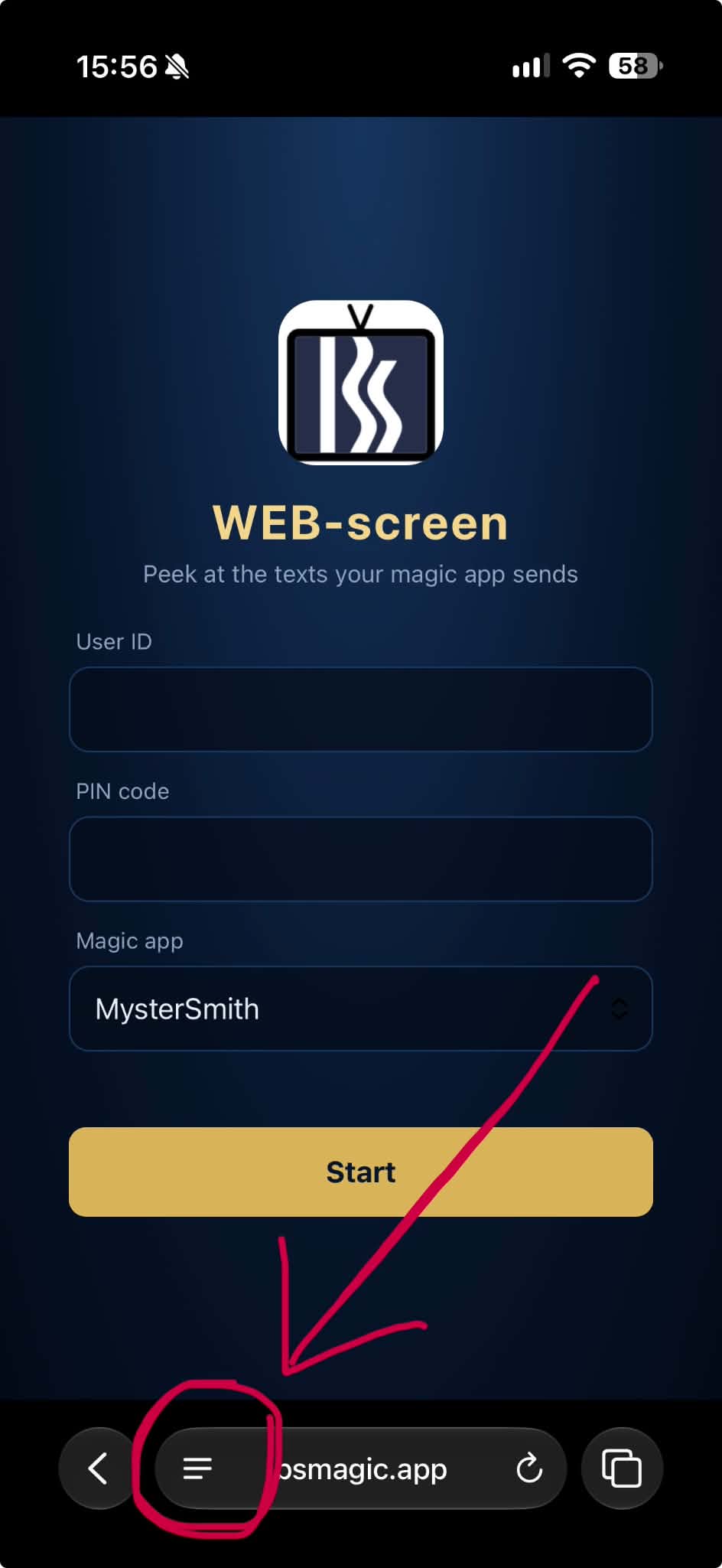
- Open bsmagic.app/webscreen in Safari.
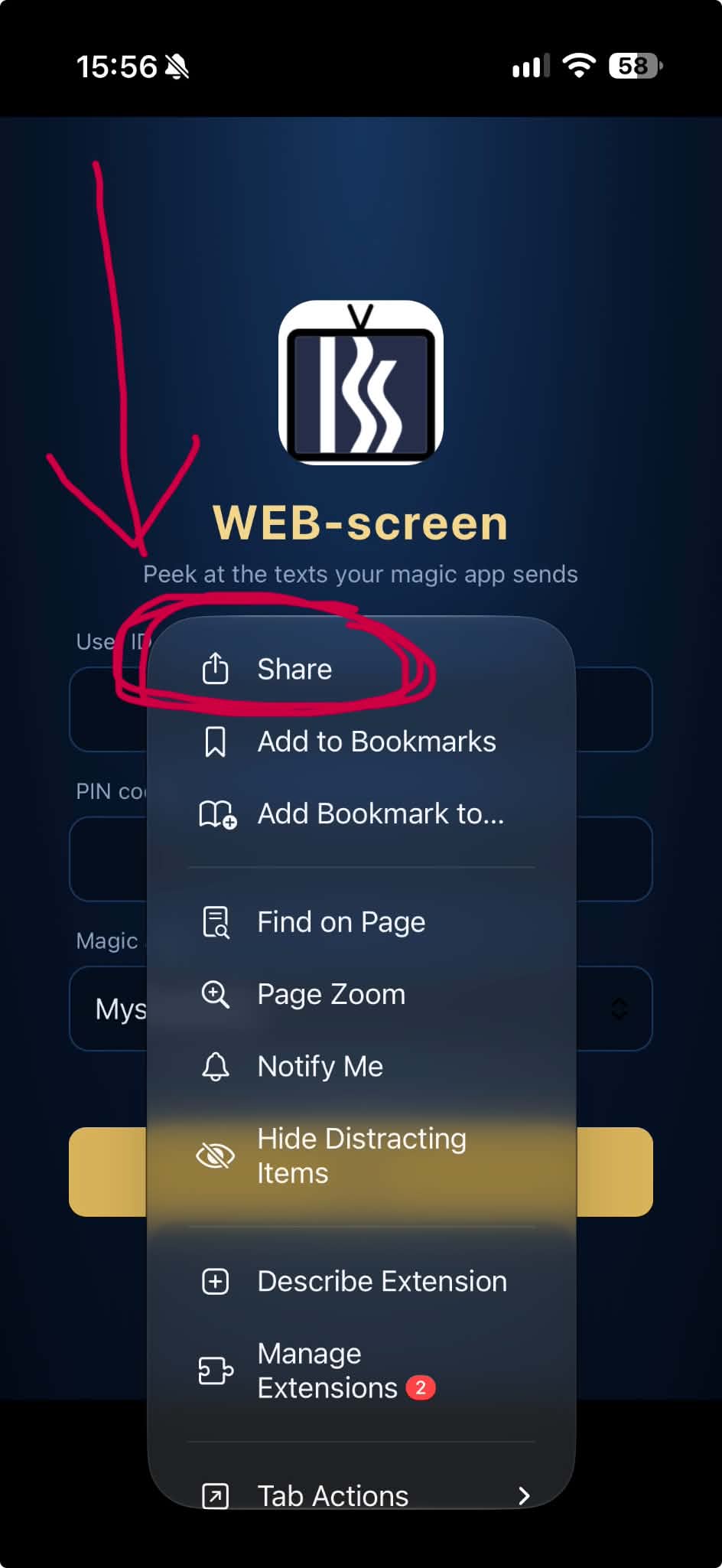
- Tap the Share button.
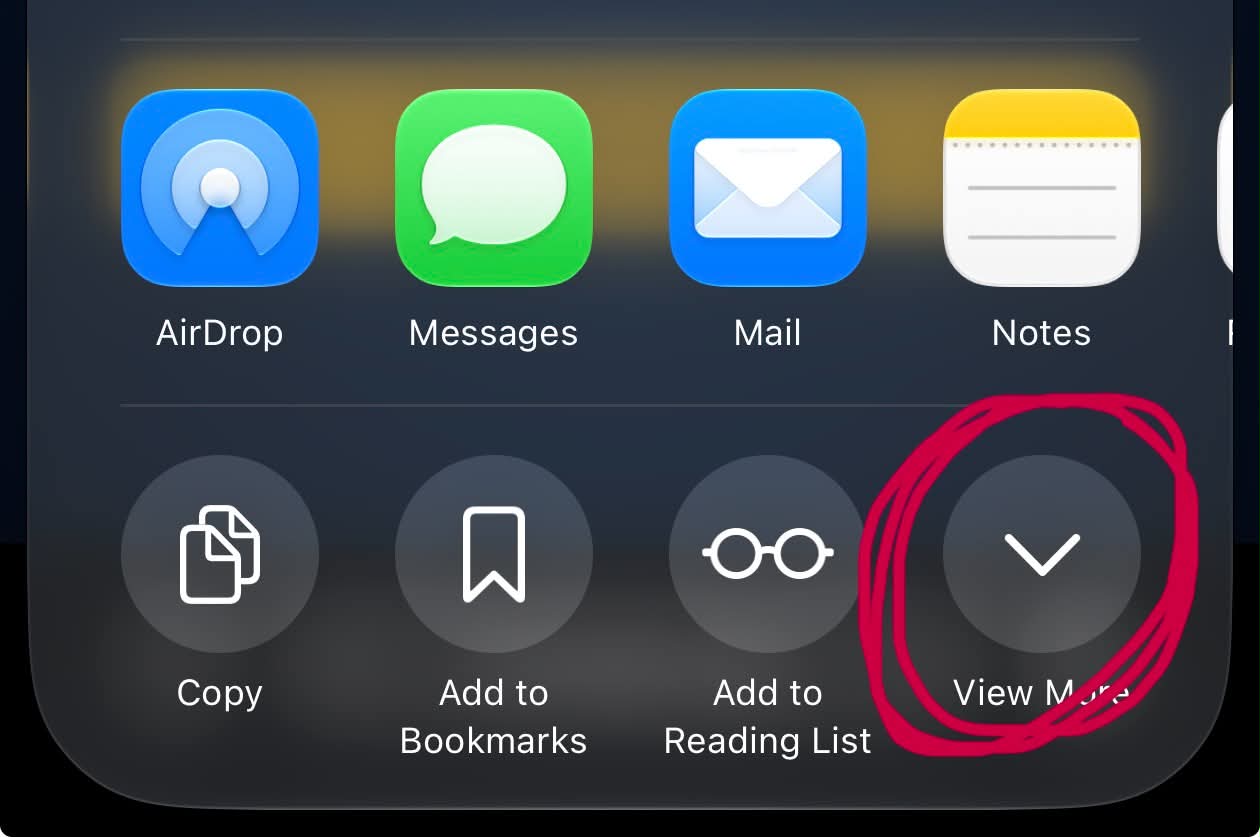
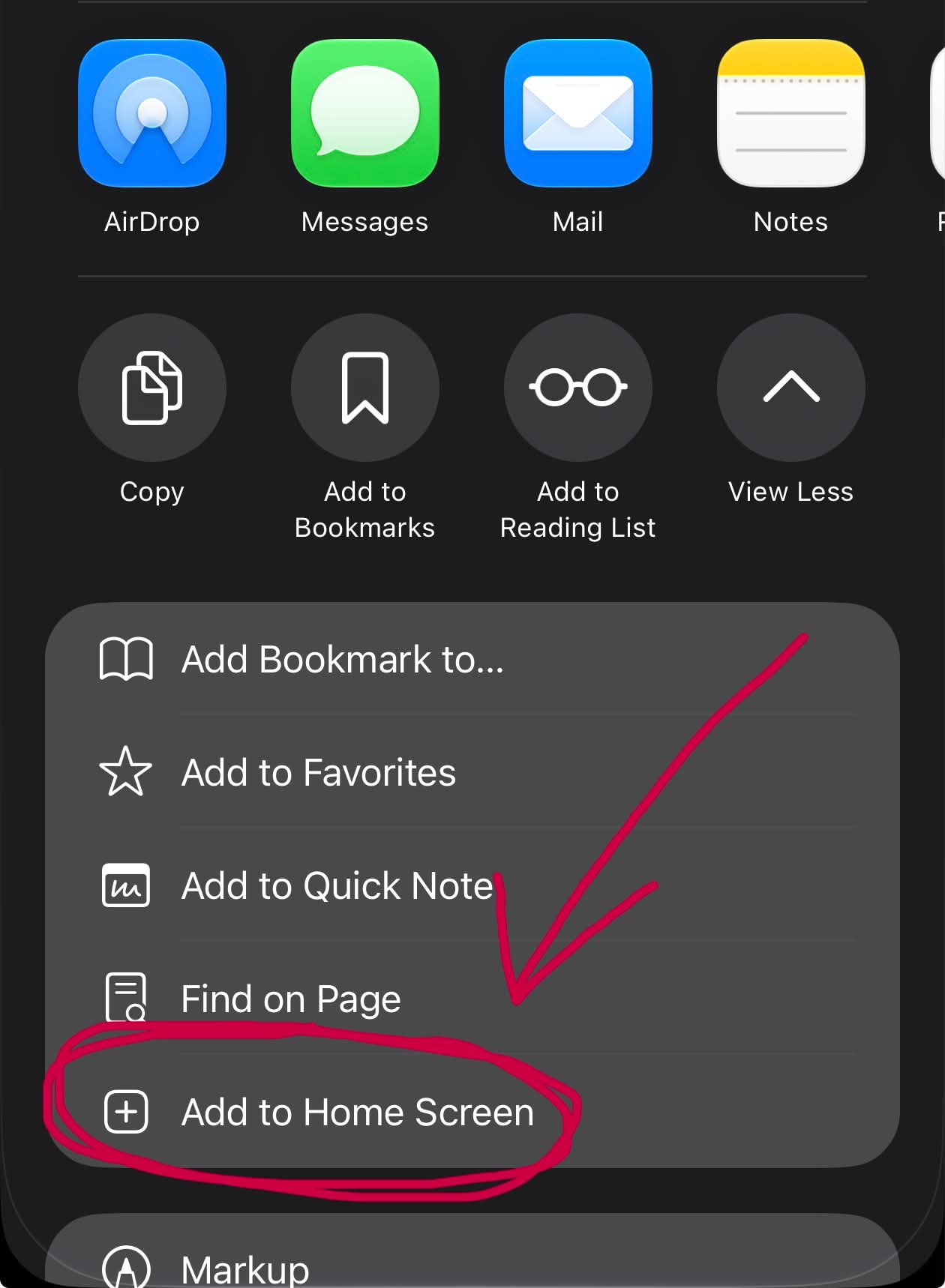
- Tap View More, then Add to Home Screen.
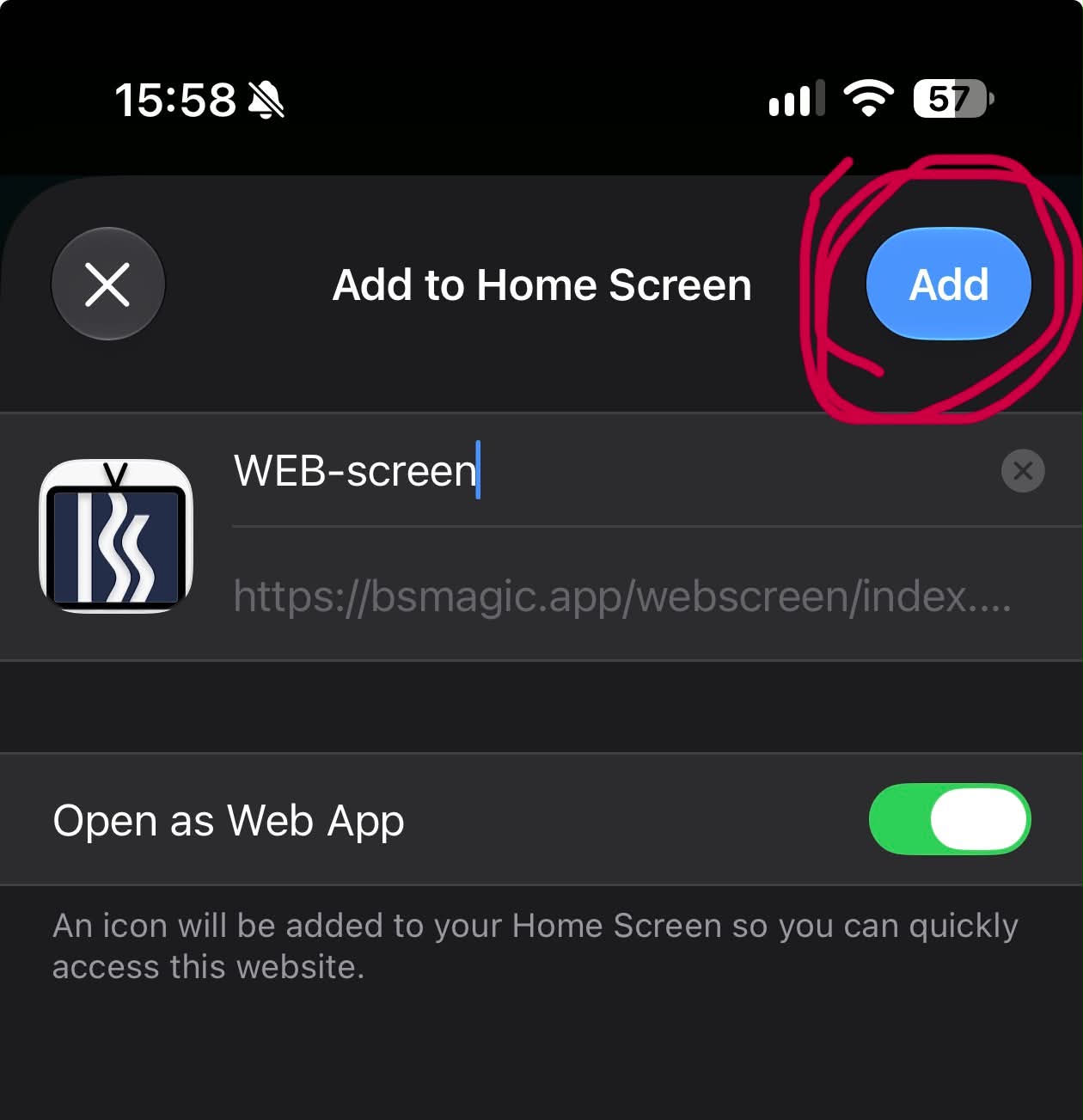
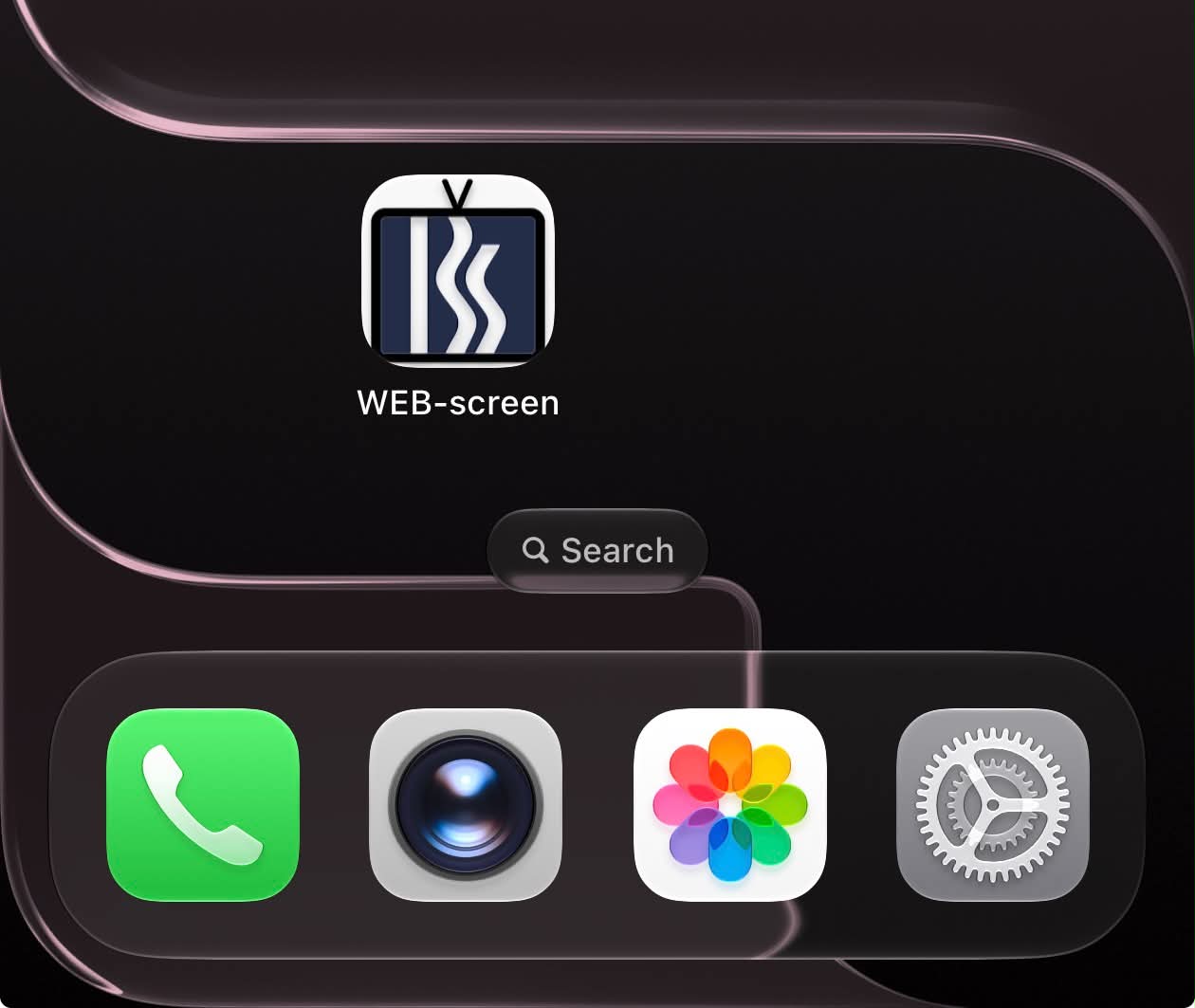
- Tap Add, then start the WEB-screen from its new icon on the home screen.
Fullscreen app shortcut on Android (Chrome)
- Open bsmagic.app/webscreen in Chrome.
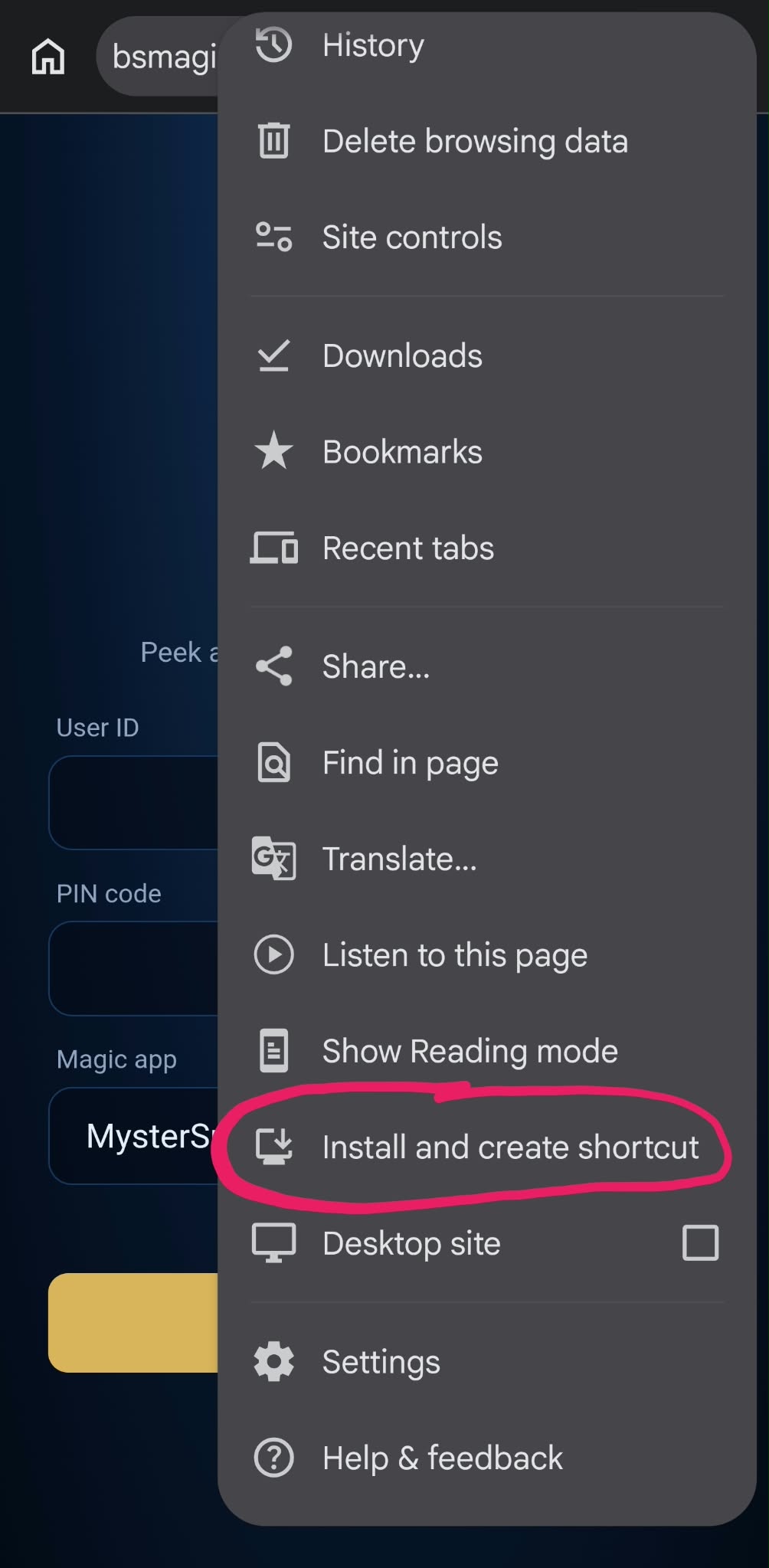
- Tap the ⋮ menu (top right).
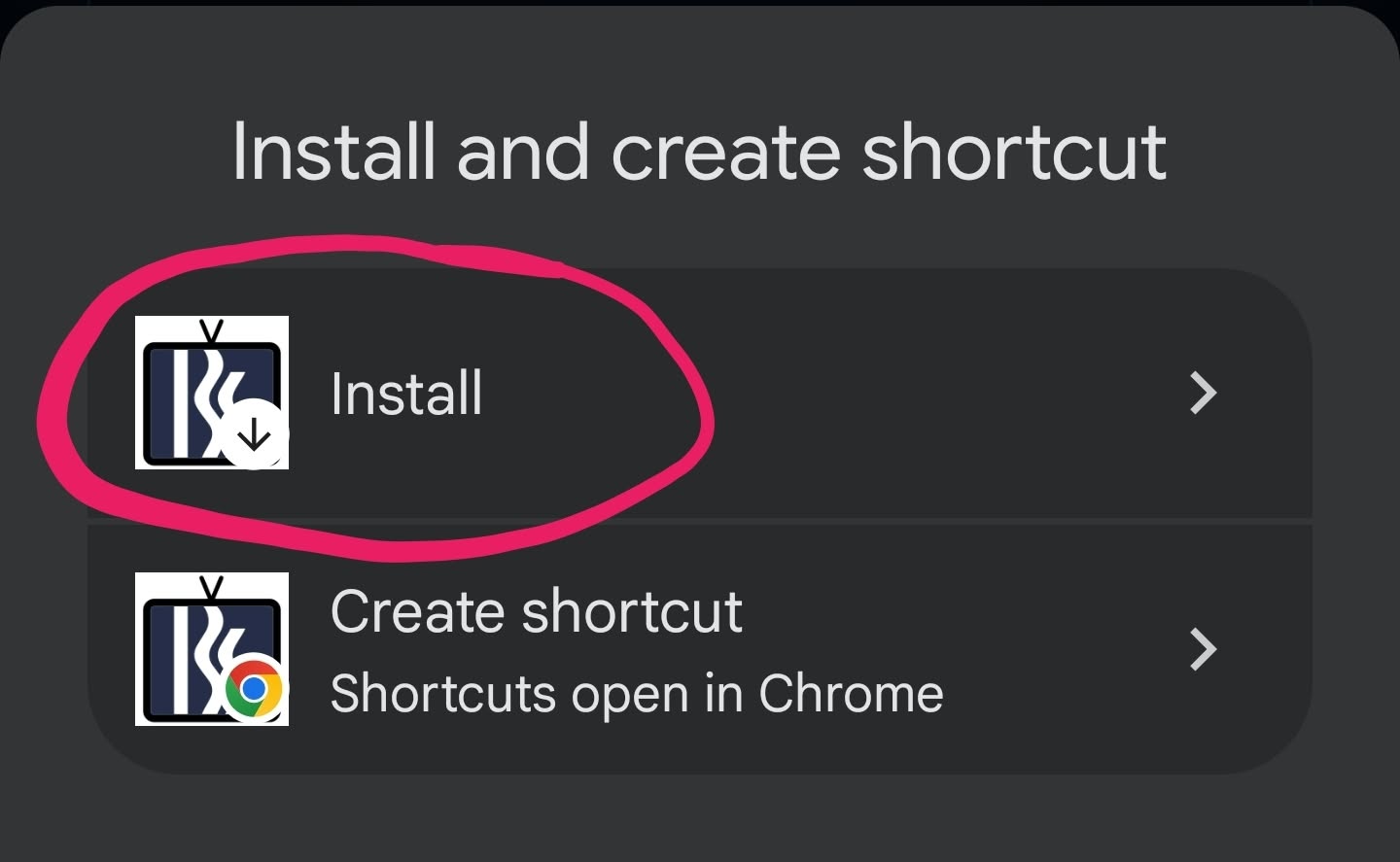
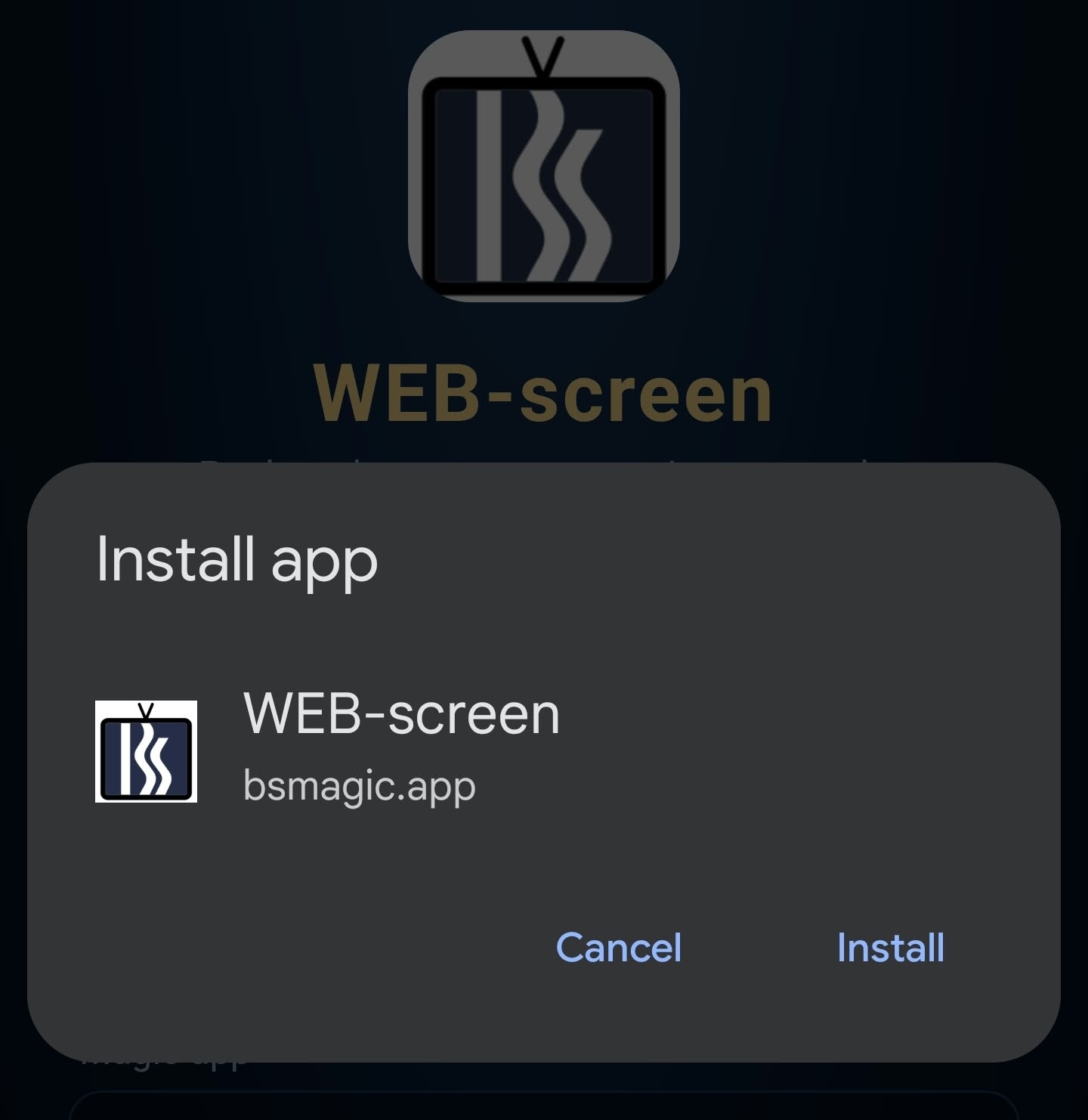
- Tap Install and create shortcut (on some phones: Add to Home screen), then Install.
- Start the WEB-screen from its new icon.